Generative Art
Programmed vector artwork you shape by turning dials, not drawing: 24 motif generators, curated palettes and a live playground preview.
Generative Art (overview and playground) Extension 7 items #
Programmed vector artwork you shape by turning dials, not drawing: 24 motif generators, curated palettes and a live playground preview.
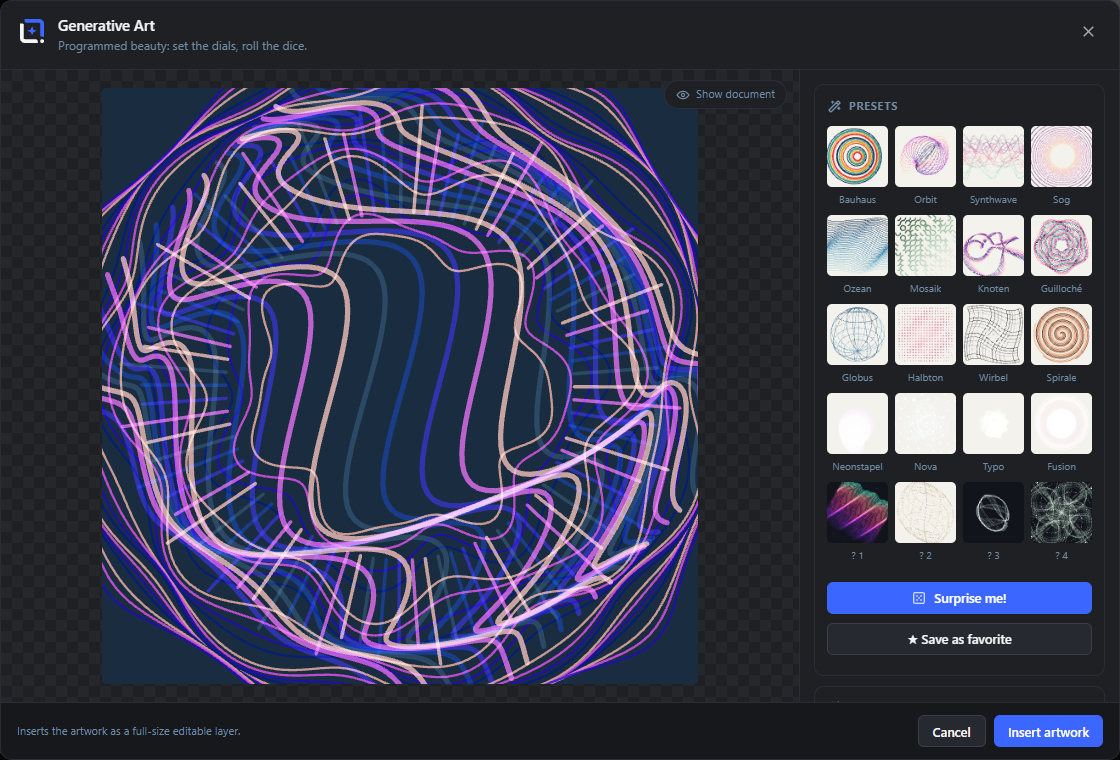
Programmed beauty: you do not draw, you set the dials. Two dozen motif generators, from rings with rhythmic widths, wave lines and color waves to guilloché rosettes, spirals, truchet mosaics, sunbursts and phyllotaxis, create abstract vector artworks from a seed dice, and every roll is reproducible.
Bend the result with a deformer stack of wave, twirl, bulge and shear, and color it from curated palettes or your brand kit.
Open it from the Extensions menu. Insert the artwork as an editable overlay layer, record an animated variant as a WebM loop, or export a true vector SVG.
Generative Art
#Opens the studio dialog. Choose it from the Generators menu for new artwork, or use Edit on a layer it created to re-open the exact artwork with its saved seed and dials.
Show document behind the artwork
#A checkbox that toggles a preview of your current document behind the artwork, so you can judge how the piece sits over your design. Preview only, it is not baked into the layer.
Drag to warp
#Drag on the preview to pull the artwork toward the pointer, adding a soft warp point. The studio keeps the six most recent pulls.
Tip. Bigger drags ripple further into the artwork.
Shift-drag to orbit / steer
#Hold Shift and drag to orbit the 3D motifs or steer the direction and amplitude of flat ones. For 3D motifs the Shift requirement is inverted, so a plain drag orbits them.
Tip. Horizontal drag turns, vertical drag scales.
Wheel to zoom
#Scroll the mouse wheel over the preview to scale the artwork up or down (the Size dial).
Double-click for new colors
#Double-click the preview to roll a new palette, hue shift and order on the same artwork, keeping the shapes.
Presets, surprises and favorites Extension 4 items #
A gallery of designed starting points, fresh random rolls, and your saved favorites.
Each preset tile is a real rendered artwork, not a thumbnail. Click one to load it, then let the dials and dice take over. The four surprise tiles are rolled fresh every time you open the dialog.
Preset tiles
#Sixteen curated starting-point artworks. Clicking a tile loads its motif, palette, seed and dials so you can tweak from a designed base.
Surprise tiles
#Four freshly rolled random artworks (labelled ? 1 to ? 4), regenerated each time the dialog opens. What you see on the tile is exactly what loads when you click it.
Tip. Rolls stay curated, so colors and blends always stay harmonic.
Save as favorite
#Saves the current artwork (its full settings) as a favorite tile. Favorites are saved with your WordPress account and rendered like presets.
Favorite tiles
#Your saved artworks, shown as clickable tiles. Each has an x in its corner to delete it.
Motif (generators) Extension 29 items #
The core generator: choose one of 24 motifs, set the seed, and roll the dice.
The motif decides what kind of shapes are drawn. Each motif exposes its own set of dials (documented in Motif dials). Circle-based motifs stay circular on non-square documents.
The seed drives the deterministic randomness, so the same seed and dials always reproduce the same artwork.
Motif
#Chooses which generator draws the artwork. Changing it swaps in that motif's own dials.
Rings
#Concentric circles, or broken arcs, with thickness following a rhythmic pattern.
Wave lines
#Horizontal sine lines stacked down the frame, strongest in the middle.
Color waves
#Filled, overlapping wave bands rising from the bottom edge.
Grid
#A mesh of horizontal and vertical lines that bends under the deformers.
Shape pattern
#A grid of circles, squares or triangles with smooth size and rotation gradients.
Guilloché
#Nested rosette curves, the fine engraved look of banknotes and stamps.
Spiral
#Several evenly rotated archimedean spiral arms.
Mosaic
#Truchet tiles: quarter-circle arcs whose seeded orientation connects into flowing loops.
Sunburst
#Rays radiating from the center, lengths following a rhythmic bar.
Halftone
#A dot grid where dot sizes follow a smooth field, like print halftone.
Particle waves
#Fields of dots riding sine waves across the frame.
Particle cloud (3D)
#A rotating cloud of points arranged in 3D space.
Ribbon (3D)
#A flowing ribbon curve twisting through 3D space.
Lissajous (3D)
#A 3D Lissajous curve, a looping knot of harmonic motion.
Bloom
#A phyllotaxis spiral of dots, the sunflower-seed pattern.
Circle stack
#Translucent circles marching along a curved path and shrinking, a tunnel of offset circles.
Shape stack
#Like Circle stack but with polygons, and with an added twist dial.
Letters
#Your typed text spun into a rotating fan or spelled out around a ring.
Polyhedron (3D)
#Platonic solid wireframes (cube, octahedron, icosahedron) echoed into depth.
Orbits (3D)
#Overlapping circles on tilted axes around one center, like an armillary sphere.
Wire sphere (3D)
#A wireframe globe of meridians and parallels, tilted in space.
Terrain (3D)
#A wireframe landscape from a harmonic height field, seen from above.
Tunnel (3D)
#Concentric frames rushing into depth and twisting as they go.
Torus knot (3D)
#A torus-knot ribbon drawn as parallel strands.
Seed
#The number that drives the artwork's randomness. The same seed with the same dials always makes the same art.
New seed
#The dice button next to the seed. Rolls a new random seed, keeping every other dial the same, for a fresh variation of the current look.
Randomize everything
#Rolls a fully new curated artwork: motif, palette, colors, blends and dials all change at once, but only along combinations that stay beautiful.
Tip. Additive blends get dark grounds, multiply gets light paper.
Text
#The text to draw, shown only for the Letters motif. Up to 24 characters.
Motif dials Extension 22 items #
The per-motif parameter sliders. Which ones appear depends on the selected motif.
Every motif shows its own small set of these dials. The ranges below are the values the sliders use; a few labels share an underlying parameter but are named for what they do in that motif.
Count
#How many elements the motif draws (rings, lines, dots, arms, and so on). More elements means denser artwork.
Gap
#The spacing between rings, the empty space between each band.
Offset
#Shifts ring centers along a direction (Rings) or the frame offset of a tunnel, for an off-center feel.
Arcs
#Breaks rings into arcs with gaps. At 0 the rings stay whole; higher opens bigger gaps.
Amplitude
#How tall the waves are. Bigger amplitude gives deeper crests and troughs.
Phase
#Shifts each successive line's wave along, spreading or aligning the crests.
Weight
#The stroke thickness of the lines or curves.
Size
#The size of each element (shapes, dots or stacked forms).
Rotation
#Rotates each shape by an amount that grows across the size gradient, in the Shape pattern motif.
Tip. Not the same as the Layout Rotation, which turns the whole artwork.
Wobble
#How much the rosette curves wobble in and out, the liveliness of the engraved lines.
Turns
#How many times each spiral arm winds around the center.
Inner radius
#How far the sunburst rays start from the center, leaving a clear middle.
Spread
#How widely the orbit rings fan out across their axes.
View angle
#Turns the 3D camera around the motif, changing the viewing angle.
Tilt
#Tilts the wireframe globe forward or back.
Height
#How tall the terrain peaks and valleys rise.
Twist
#How much the tunnel frames rotate as they recede, or the twist added to a Shape stack.
Thickness
#The band width of the torus knot ribbon.
Reach
#How far the stacked shapes travel out along their path from the center.
Direction
#The direction the stack or letter fan marches away from the center.
Shrink
#How quickly each successive stacked shape (or letter copy) gets smaller.
Spin
#How much the letters (or polyhedron echoes) rotate as they repeat.
Colors Extension 26 items #
Palette, custom brand color, how colors walk the shapes, opacity, hue, order and the background fill.
Colors always stay inside a curated palette, so every roll stays harmonic. You can also feed a custom brand color, which is expanded into a five-stop palette, or pick a saved brand kit.
Palette
#The color set for the artwork. Twelve curated palettes, plus a custom brand color option and any saved brand kits.
Northern Lights
#Deep blues rising to pale teal and cream, an aurora feel.
Sunset
#Purple through magenta and coral to warm yellow.
Bauhaus
#Primary red, gold, teal and navy on cream, a classic Bauhaus set.
Ocean
#Navy through blues to pale aqua.
Terracotta
#Earthy browns, clay orange and warm sand.
Pastel
#Soft blue, pink, yellow, green and lilac.
Neon Noir
#Near-black with electric purple, pink, coral and mint.
Sage
#Muted greens fading to soft off-white.
Ink
#A grayscale ramp from near-black to pale gray.
Royal
#Deep indigo and violet up to pink and gold.
Citrus
#Dark green through lime and yellow-green to pale cream.
Rosé
#Deep wine through rose pinks to blush.
Custom (brand color)
#Builds a five-stop harmonic palette from a single brand color you choose, so the artwork matches your brand.
Base color
#The brand color the custom palette is built from. Shown only when Palette is set to Custom.
Any saved brand kits (Pro) appear in the palette list with a star. Choosing one copies its colors into the artwork so it stays reproducible even if the kit later changes.
Color chips
#A read-only row of swatches showing the current palette's colors after any hue shift and order changes.
Mode
#How colors are assigned across the elements as the motif steps through them.
Cycle
#Steps through the palette colors one by one and repeats, so neighbors differ.
Gradient
#Blends smoothly through the palette from first color to last across all elements.
Contrast
#Alternates between the palette's darkest and lightest color for a high-contrast look.
Duo
#Alternates between just two mid-palette colors, a clean two-tone.
Opacity
#The overall transparency of the shapes. Lower values let overlaps blend and show through.
Hue shift
#Rotates every palette color around the color wheel, recoloring the whole set at once.
Order
#Whether the palette runs dark to light or light to dark, flipping which end leads.
Background
#The fill behind the artwork. Transparent leaves it clear; the others use the palette's dark or light color, flat or as a gradient.
Deform Extension 11 items #
A stack of up to three deformers that bend the artwork, each with a strength and frequency.
The three deformer slots apply in order, each bending the points before the next. Every deformer is off at strength 0 and uses whole-number frequencies so the bends stay rhythmic, never noisy.
Deformer slot (1, 2, 3)
#Each of the three numbered rows picks one deformer to apply. Leave a slot on None to skip it.
None
#No deformation for this slot, the artwork passes through unchanged.
Wave
#A horizontal sine wave that pushes points up and down.
Wave (vertical)
#A vertical sine wave that pushes points left and right.
Twirl
#Rotates points around the center, more near the middle, for a spiral swirl.
Pinch / bulge
#Pushes points toward or away from the center, pinching the middle or bulging it out.
Shear
#Slants the artwork, sliding the top and bottom in opposite directions.
Ripple
#Concentric ripples radiating from the center, like a drop in water.
Squeeze
#Narrows the artwork horizontally in a band based on vertical position, a soft waist.
Strength
#How strongly this deformer bends the artwork. At 0 it does nothing.
Frequency
#How many waves or repeats the deformer uses. Whole numbers keep the bend rhythmic.
Effects Extension 8 items #
Blend mode, glow, star dust sparkle and line style for the whole artwork.
Blend mode
#How overlapping shapes mix. Screen and Additive fuse overlaps into brighter new colors, Multiply darkens them.
Normal
#Standard drawing, later shapes cover earlier ones by their opacity.
Screen
#Lightens where shapes overlap, glowing new colors on a dark ground.
Additive
#Adds colors together, the brightest fusing of overlaps.
Multiply
#Darkens overlaps, works best on a light background.
Glow
#Adds a soft glow around the shapes, strongest with a dark background and additive blends.
Star dust
#Scatters tiny sparkle particles across the artwork.
Line style
#How open (stroked) lines are drawn.
Combine Extension 5 items #
Fuse up to three extra generators into the artwork, each with its own motif, blend and size.
Beyond the main motif you can stack up to three more generators. Each fuses in with its own blend mode, and screen or additive blends make the overlaps create new colors.
Extra generator row
#Each numbered row adds one more motif on top of the artwork. Its x button removes that generator.
Second motif
#Picks which motif the extra generator draws. Any of the 24 motifs can be layered in.
Blend mode (combine)
#How this extra generator mixes with the layers below it.
Size (combine)
#Scales this extra generator relative to the main artwork.
Add generator
#Adds another extra generator with a random complementary motif and blend. Also available from the preview's right-click menu.
Layout Extension 3 items #
Kaleidoscope mirroring, overall size and rotation of the whole artwork.
Animation Extension 4 items #
Play a seamless loop of the artwork and record it as a WebM video.
The animation loops seamlessly, the last frame matching the first. Play previews it live; the record buttons capture it as a WebM at the document's aspect ratio.
Play loop
#Starts and stops a live animated preview of the artwork looping. The button toggles between play and pause.
Tip. Stopping resets the artwork to its still, frame-zero pose.
Duration
#The length of one animation loop in seconds.
Record WebM to Media Library
#Records one seamless loop and uploads it into the media library. Chrome, Edge and Firefox record WebM; Safari records MP4, and the file is named accordingly. A browser whose recorder can do neither says so instead of starting.
Download WebM
#Records one seamless loop and downloads it as a video file instead of uploading it: WebM in Chrome, Edge and Firefox, MP4 in Safari.
Export and insert Extension 4 items #
Export true vector SVG, and the dialog's insert and cancel actions.
The artwork is real vector geometry, so the SVG export is identical to the inserted layer. Inserting adds it as a full-size editable layer that re-opens with its exact seed.
Download SVG
#Saves the artwork as a true vector SVG file, with paths identical to the inserted layer.
Save SVG to Media Library
#Uploads the vector SVG into the WordPress media library. If the server blocks SVG uploads, it suggests using the download instead.
Insert artwork / Update artwork
#The primary button. On new artwork it inserts a full-size editable layer named Artwork with the seed; when editing it updates the existing layer in place and re-saves the seed and dials.
Tip. Re-opening the layer with Edit reproduces the exact artwork, the seed travels with it.
Cancel
#Closes the studio without inserting or changing any layer. Escape and clicking the dark backdrop do the same.