Seamless Patterns
Endless seamless patterns from a seed: motif builders, a rapport and curated palettes, with your own layers stamped in.
Overview Extension #
Endless seamless patterns from a seed: motif builders, a rapport and curated palettes, with your own layers stamped in.
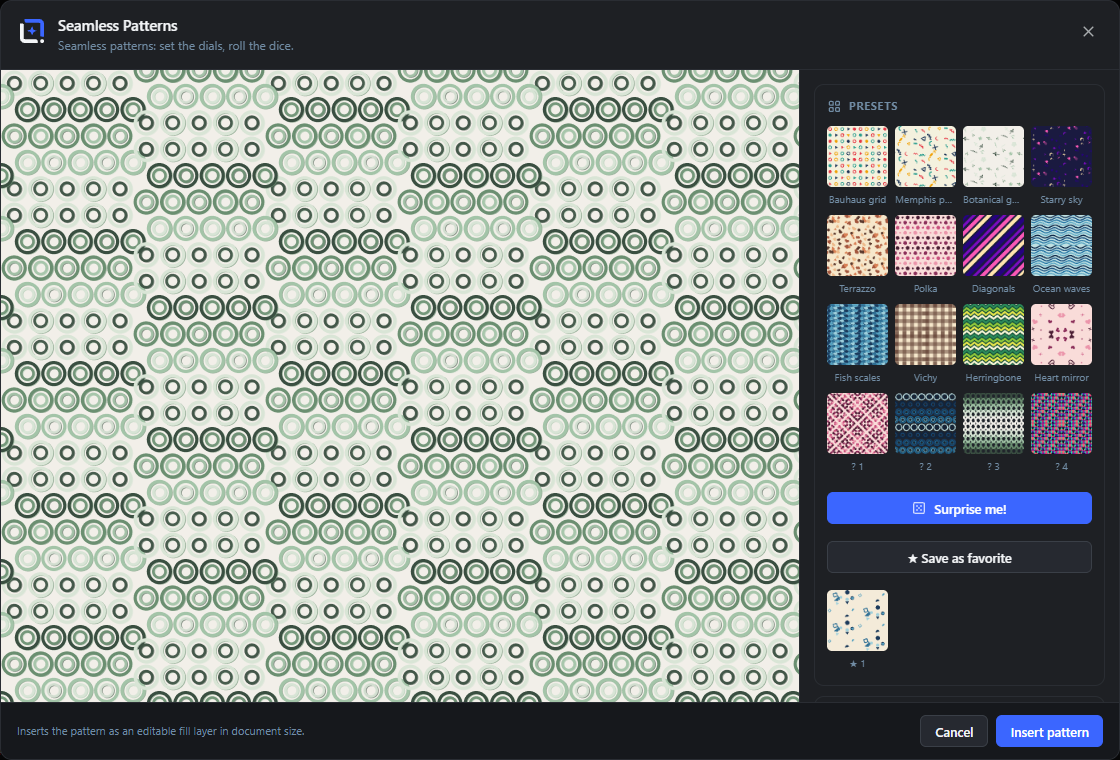
Seamless patterns from a seed. A couple of dozen motif builders, from doodle scatter, polka dots and stripes to fish scales, gingham, terrazzo, truchet and honeycomb, fill a design cell; a rapport such as straight, half-drop, brick or mirror turns it into a repeat tile; and curated palettes keep every roll of the dice harmonic.
Stamp any editor layer into the pattern, which turns a logo into a brand pattern in one click. Mix two doodle sets, add a riso offset-print layer and dashed or dotted line styles, and drag elements right in the preview, where they wrap around the tile edge live.
Open it from the Extensions menu. Insert the pattern as an editable fill layer, register the tile in the editor's pattern library so shapes and text can wear it, save favorites, or download the tile as PNG or SVG.
Presets and surprises Extension 16 items #
The starting gallery: twelve ready-made looks, four fresh random rolls, a full dice button, and your own saved favorites.
The Presets card sits at the top of the side panel. Each tile is a live thumbnail. Click any tile to load that whole recipe (motif, doodle set, palette, dials, rapport) at once, then keep tweaking.
Every time you open the studio the four Surprise tiles are rolled again, so the gallery of chance is never the same twice. Favorites you save are kept with your WordPress account and appear below the presets.
Bauhaus grid
#Loads a Grid motif of geometric shapes in the Bauhaus palette on a light ground with a straight repeat. A clean, primary-color grid look.
Memphis party
#Loads a busy Scatter of Memphis-style squiggles and shapes in the Bauhaus palette with a half-drop repeat. Playful 1980s design vibe.
Botanical garden
#Loads a scattered field of leaves and flowers (Botanical set) in the Sage palette. A soft, natural repeat for organic backgrounds.
Starry sky
#Loads stars, moons and clouds (Sky set) in the Royal palette on a dark background. A night-sky repeat.
Terrazzo
#Loads the Terrazzo motif (scattered stone chips and dust) in the Terracotta palette on a light ground. The classic speckled floor look.
Polka
#Loads the Polka dots motif in the Rosé palette with a straight repeat. Evenly spaced dots.
Diagonals
#Loads the Stripes motif set to diagonal in the Royal palette on a dark ground. Angled bands of color.
Ocean waves
#Loads the Waves motif in the Ocean palette on a light ground. Flowing horizontal wave lines.
Fish scales
#Loads the Scales motif in the Northern Lights palette. Overlapping half-circle scales, like a roof or a fish.
Vichy
#Loads the Gingham motif in the Terracotta palette. The woven check of translucent crossing bars.
Herringbone
#Loads the Chevron motif with four teeth in the Citrus palette on a dark ground. A zig-zag herringbone weave.
Heart mirror
#Loads scattered hearts (Hearts set) in the Rosé palette with a Mirror rapport, so the hearts flip symmetrically across the tile.
? 1 to ? 4 (Surprise)
#Four curated random tiles, re-rolled every time you open the studio. Each pulls a vetted motif, doodle set, palette and dial mix so even the wildest throw still looks designed. Click one to load it.
Tip. These change on every open, so grab one you like straight away.
Randomize everything
#The Surprise me! button with the dice icon at the end of the preset grid. It rolls a fresh, curated random pattern into the whole studio: new motif, set, seed, palette, colorway, background, rapport and effects.
Tip. Keep clicking to browse ideas, then fine-tune the dials.
Save as favorite
#Stores the current pattern recipe as a favorite saved with your WordPress account so you can reload it later, on any device. It saves the settings, not the picture, so a captured stamp is not kept (a stamped set falls back to Geometric).
Tip. Marked with a star so it never clashes with the built-in presets.
★ favorites
#The row of saved favorites below the presets, each a live thumbnail labelled with a star. Click one to reload it; click the small × on a tile to delete it.
Pattern (motif and seed) Extension 6 items #
Choose the base motif, the doodle set that fills it, and the random seed that arranges everything.
The Pattern card is where you pick what the tile is made of. The Motif decides the overall structure; for the scatter, grid and diamond motifs a Doodle set decides which little shapes get placed.
The Seed is the random number behind the arrangement. The same seed with the same dials always produces the exact same tile, so patterns are reproducible.
Motif
#The base structure of the pattern. Pick from fourteen builders (Scatter, Grid, Diamond, Polka dots, Stripes, Waves, Chevron, Scales, Gingham, Terrazzo, Truchet, Honeycomb, Ogee, Crosshatch). Changing the motif clears any manual playground edits.
Doodle set
#The little shapes placed by the Scatter, Grid and Diamond motifs. Choose from seven sets (Geometric, Memphis, Botanical, Sky, Blobs, Confetti, Hearts) or Own layer (stamp) to use one of your own editor layers. This control only appears for those three motifs.
Second set
#Optionally mixes a second doodle set into the scatter or grid, so two families of shapes appear together. Set to Off for a single set. Hidden when the primary set is a stamp.
Use active layer
#Captures the currently selected editor layer (or group) as a stamp image, so your logo or artwork becomes the repeating element. Select a layer in the editor first, then click. This row appears when the doodle set is Own layer (stamp).
Tip. A group is captured whole, including everything inside it.
Seed
#The random number that fixes how elements are placed and colored. Shown next to the dice. The same seed plus the same dials always redraws the identical tile.
New seed
#The dice button beside the seed number. Rolls a new random seed, giving a fresh arrangement of the same motif and colors. It also clears any manual moves, adds or removes you made in the preview.
Tip. Use it to browse variations without changing the style.
Motifs (the twenty-two builders) Extension 14 items #
The twenty-two pattern structures, from scattered doodles to woven weaves, each with its own set of dials.
Every motif fills one square design cell and is engineered to tile seamlessly: any shape that crosses a cell edge re-enters on the opposite side. The dials listed for each motif are the ones that appear when it is selected. Opacity is always shown as well.
Scatter and Terrazzo are the two motifs whose individual elements you can drag, add and remove right in the preview.
Scatter
#Sprinkles doodles from the chosen set across the cell on a jittered grid, so they look random without clumping. The go-to motif for playful, freeform repeats. Its elements can be dragged, added and removed in the preview.
Grid
#Places doodles on an even rows-and-columns grid. Tidy and regular, good for structured backgrounds. The Variety dial mixes in more shapes from the set.
Diamond
#Like the Grid but every other row is offset by half a column, forming a diamond (half-brick) lattice of doodles.
Polka dots
#A clean grid of dots with every other row offset. Turn Variety up past halfway to alternate large and small dots.
Stripes
#Parallel bands of color. The Direction control makes them horizontal, vertical or diagonal, and Variety switches the width rhythm so the stripes feel designed rather than uniform.
Waves
#Rows of smooth sine waves. Amplitude sets the wave height, Frequency the number of humps, and Phase how much each row is shifted from the one above.
Chevron
#Rows of sharp zig-zags. Teeth sets how many points per row and Amplitude how tall they are. Makes herringbone and arrow looks.
Scales
#Overlapping half-circle scales, like fish scales or roof tiles, each row lapping over the one below.
Gingham
#The woven check of translucent horizontal and vertical bars crossing to make a plaid. Turn Variety up to give the two directions different colors.
Terrazzo
#Scattered stone chips (blobs and angular shards) plus fine speckled dust between them, for the classic terrazzo floor look. Its chips can be dragged, added and removed in the preview.
Truchet
#A grid of tiles each carrying a random quarter-arc or crossing diagonal, so curved or angular paths wander across the pattern. Variety trades some arcs for diagonals.
Honeycomb
#A tessellating grid of hexagons. Variety controls how many cells are filled solid versus drawn as outlines.
Ogee
#The classic onion or lattice net built from mirrored curved rails, with alternate rows offset by half a period.
Crosshatch
#Two diagonal stripe layers crossing each other, the second thinner and a shade further along the palette, for a sketched hatch texture.
Motif dials Extension 13 items #
The sliders that shape the selected motif; which ones appear depends on the motif, and Opacity is always there.
These dials live in the Pattern card, under the seed. Only the dials that make sense for the current motif are shown, so the exact range can differ between motifs (the values below are the common ranges seen in the code).
Count
#How many elements or rows the motif draws. More count means a denser pattern. The exact range depends on the motif.
Columns
#The same count dial, but labelled Columns for the grid-style motifs (Grid, Diamond, Polka dots, Scales, Honeycomb), where it sets how many columns fit across the cell.
Size
#How big each drawn element is, as a percentage of its slot. Larger values make chunkier shapes.
Jitter
#How far elements wander from their exact grid spot. Zero is perfectly regular; higher values scatter them for a hand-placed, organic feel.
Rotation
#How much each element is randomly turned. Zero keeps everything upright; higher values tumble the shapes. In grids, values of 50 or more snap to clean right-angle turns.
Weight
#Line thickness for stroked motifs and outlined shapes. Higher is bolder.
Variety
#How much variation the motif introduces: more shapes from the set (grids), alternating dot sizes (polka), different width rhythms (stripes), two colors (gingham), or more diagonals (truchet).
Direction
#For the Stripes motif only: sets the stripe angle. Choose Horizontal, Vertical, Diagonal down or Diagonal up.
Frequency
#For Waves and Ogee: how many wave cycles fit across the cell. Higher values pack in more humps.
Teeth
#For the Chevron motif: how many zig-zag points sit in each row. More teeth make a tighter zig-zag.
Amplitude
#For Waves, Chevron and Ogee: the height of the wave or zig-zag. Higher is more pronounced.
Phase
#For the Waves motif: how much each row is shifted sideways from the one above, from all-aligned to a rolling offset.
Opacity
#The overall see-through level of the drawn shapes. Lower it to let the background show through. This dial appears for every motif.
Doodle sets Extension 9 items #
The seven families of little shapes the Scatter, Grid and Diamond motifs place, plus the option to use your own layer.
A doodle set is a small library of drawn shapes. When the motif is Scatter, Grid or Diamond, the chosen set decides which shapes appear. You can also mix in a Second set, or replace the shapes entirely with a stamp of one of your editor layers.
Geometric
#Filled and outlined circles, triangles, squares, a plus/star and a half-disc. Clean primary forms for structured, modern patterns.
Memphis
#Squiggles, zig-zags, arcs, crosses and pill shapes in the playful 1980s Memphis design style.
Botanical
#Leaves, sprigs, berries, a petal cluster and a vine, for natural, garden-like repeats.
Sky
#Five- and four-point stars, a crescent moon, a shooting star, a sun and a scatter of tiny dots. Perfect for night-sky patterns.
Blobs
#Soft, organic blob shapes with gentle wobble, some filled and one outlined. Good for abstract, fluid backgrounds.
Confetti
#Little bars, squiggles, triangles, dots, arcs and diamonds, like scattered party confetti.
Hearts
#Filled and outlined hearts, a small star, a tiny heart and a dot. Sweet, romantic repeats.
Own layer (stamp)
#Replaces the doodle shapes with an image of your own editor layer, captured with Use active layer. Turns a logo or graphic into a repeating stamp in one click.
Tip. Stamps are rendered as images, so the riso offset-print effect is skipped for them.
Off (Second set)
#The default choice for the Second set control: use only the primary doodle set, with no mixing.
Rapport (repeat and tile) Extension 8 items #
How the design cell repeats into a full tile, plus the tile resolution and preview zoom.
The Rapport card turns your one design cell into a repeating tile. The repeat mode decides how neighbouring cells are offset or mirrored. Tile size sets the export resolution, and the zoom and frame controls only affect how you view the preview.
Repeat
#How the design cell is laid out into the repeating tile. Choose Straight, Half-drop, Brick or Mirror.
Straight
#The plainest repeat: cells line up in a simple grid with no offset. One cell per tile.
Half-drop
#Every second column is dropped down by half a cell, so rows never line up straight across. A classic textile repeat that hides the grid.
Brick
#Every second row is shifted sideways by half a cell, like a brick wall. The horizontal cousin of half-drop.
Mirror
#The cell is flipped horizontally and vertically across a two-by-two block, so the pattern reflects like a kaleidoscope and edges always match.
Tile size
#The pixel resolution of one exported cell edge. Higher values give sharper PNG and library tiles at the cost of size. This sets export quality only; it does not change the design.
Zoom
#How large the pattern appears in the preview, for inspecting detail or seeing the repeat. The mouse wheel over the preview also zooms.
Show tile frame
#Draws a dashed blue rectangle around one repeat unit in the preview, so you can see exactly where the tile starts and ends. Off by default.
Tip. Also toggleable from the right-click menu in the preview.
Colors Extension 9 items #
Pick a palette or brand color, shuffle colorways, reverse the order, and choose the background.
The Colors card controls the palette and the ground. Twelve curated palettes keep every roll harmonic; you can also feed in a single brand color or, on Pro, a saved brand kit. The little swatch strip below shows the colors currently in play.
Palette
#The color set used for the pattern. Choose one of twelve curated palettes, Custom (brand color) to build a palette from a single hex, or one of your saved brand kits (starred).
Base color
#A color picker that builds a five-step palette (dark to light) around your chosen brand color. Only visible when the palette is set to Custom (brand color).
New colorway
#Rotates which palette color lands on which element, giving a different color arrangement without changing the palette itself. Cycles through five colorways.
Tip. Double-clicking the preview does the same thing.
Reverse order
#Flips the palette from light-to-dark to dark-to-light (and back), swapping which colors read as foreground and accent.
Background
#The ground behind the pattern. Transparent leaves it see-through, Light and Dark pull the lightest or darkest palette color, and Custom color opens a picker.
Transparent
#A background option: no fill behind the pattern, so whatever is under the pattern layer shows through.
Light (palette)
#A background option: uses the lightest color of the current palette as the ground. Elements that would vanish into it are automatically skipped.
Dark (palette)
#A background option: uses the darkest color of the current palette as the ground, for pattern on a rich, dark field.
Custom color
#A color picker for the background, shown when Background is set to Custom color. Sets any hex you like behind the pattern.
Palette catalog Extension 14 items #
The twelve built-in five-color palettes, plus the custom brand color and Pro brand kits.
Each palette is five harmonic colors, ordered dark to light. Selecting one is instant; the swatch strip in the Colors card shows the exact colors. These are the choices in the Palette dropdown.
Northern Lights
#Cool blues and teal fading to a warm cream. The default palette.
Sunset
#Deep purple through magenta and coral to golden yellow, like a sky at dusk.
Bauhaus
#Primary red, amber, teal and navy on off-white. Bold, graphic and design-school classic.
Ocean
#Deep navy stepping up through mid-blues to a pale aqua. Cool and marine.
Terracotta
#Earthy browns and clay oranges to warm sand. Natural and grounded.
Pastel
#Soft blue, pink, butter, mint and lilac. Gentle and airy.
Neon Noir
#Near-black violet with electric magenta, coral and green. High-contrast and nocturnal.
Sage
#Muted greens from forest to pale sage on soft cream. Calm and botanical.
Ink
#A pure greyscale ramp from near-black to light grey. Monochrome and versatile.
Royal
#Deep indigo and purple rising to hot pink and warm gold. Rich and regal.
Citrus
#Forest green through lime and chartreuse to pale yellow. Fresh and zesty.
Rosé
#Deep wine through raspberry and rose to blush pink. Warm and romantic.
Custom (brand color)
#Builds a five-step palette (dark to light) around a single hex you choose in the Base color picker, so the pattern matches your brand color.
Your saved brand kits appear at the end of the palette list, starred. Selecting one copies its colors into the pattern, so the tile keeps those colors even if the kit changes later. Needs at least two valid colors.
Effects Extension 5 items #
Add a riso offset-print look and switch the line style of stroked motifs.
The Effects card layers a couple of print-inspired finishes over the pattern. They apply on top of whatever motif and colors you have chosen.
Offset print
#Adds a second, slightly shifted and translucent ink layer under the shapes, imitating the misregistered look of riso and offset printing. Zero is off; higher values push the ghost layer further. Applies to vector shapes only, not image stamps.
Tip. A little goes a long way for a retro print feel.
Line style
#How stroked lines are drawn: Solid, Dashed or Dotted. Only affects outlined and line-based shapes, not filled ones. Carried through to the SVG export too.
Solid
#The default line style: unbroken strokes.
Dashed
#Breaks strokes into evenly spaced dashes.
Dotted
#Breaks strokes into a row of round dots.
Pattern library and export Extension 4 items #
Name the tile, save it as a reusable fill pattern, or download it as PNG or SVG.
The Pattern library card is where a finished tile leaves the studio. You can register it in the editor's pattern library so shapes and text can be filled with it, or download the raw tile as a raster PNG or a vector SVG that repeats seamlessly in any tool.
Name
#A short label for the tile, used when you save it to the pattern library and as the layer name when you insert it. Defaults to Pattern <seed>.
Save as fill pattern
#Registers the current tile in the editor's pattern library, so it becomes available as a repeating fill for shapes and text everywhere in the editor. Saved at the chosen Tile size.
Tip. Once saved it stays in the library for future documents.
Download PNG tile
#Downloads one repeat tile as a raster PNG image at the chosen Tile size. The file name includes the motif and seed.
Download SVG tile
#Downloads the tile as a standalone vector SVG that repeats seamlessly in any layout tool. If you used a layer stamp, its image is embedded in the SVG.
Insert and dialog actions Extension 3 items #
The footer buttons that place the pattern into your document or close the studio.
The footer sits at the bottom of the dialog. Inserting adds the pattern as an editable fill layer at document size; the layer stays linked to the generator, so you can reopen it later and adjust every dial.
Cancel
#Closes the studio without changing your document. The Escape key and clicking outside the dialog do the same.
Tip. Nothing is inserted or saved until you click Insert.
Insert pattern
#Adds the pattern to your document as an editable fill layer that covers the whole canvas. The layer keeps a link to the generator, so you can reopen and re-edit it any time.
Update pattern
#When you opened the studio by editing an existing pattern layer, this replaces the footer button and applies your changes back to that same layer in place.
Playground (live preview) Extension 10 items #
The preview is interactive: drag, zoom, double-click and right-click to shape the pattern directly.
The big preview on the left is the pattern itself, tiled edge to edge. You can rearrange it by hand and every change wraps seamlessly around the tile boundary. A hint under the cursor reminds you of the gestures.
On the Scatter and Terrazzo motifs you drag individual elements; on every other motif dragging shifts the whole pattern. Right-clicking opens a small in-canvas menu (never a browser menu).
Drag to move elements
#On Scatter and Terrazzo, click and drag the nearest element to reposition it. If it crosses the tile edge it re-enters on the opposite side, so the repeat stays seamless.
Drag to shift pattern
#On all other motifs, dragging slides the whole pattern under the tile window, wrapping around the edges. Handy for lining the design up the way you want.
Wheel: zoom
#Scroll the mouse wheel over the preview to zoom in and out, between 35% and 320%. This mirrors the Zoom slider.
Double-click: new colorway
#Double-click anywhere in the preview to rotate to the next colorway, the same as the New colorway button.
Right-click menu
#Right-click the preview to open a small menu with pattern actions. Which items appear depends on the motif.
Stripe direction options Extension 4 items #
The four choices in the Direction dropdown, which only appears when the Motif is set to Stripes.
The Direction dropdown is a per-motif dial that shows up only for the Stripes motif. It decides which way the stripe lines run. The default is Diagonal down.
Horizontal
#Draws the Stripes motif as level lines running left to right. Pick this for classic横 banded stripes.
Tip. The line count follows the Count dial; the thickness follows Weight.
Vertical
#Draws the Stripes motif as upright lines running top to bottom. Use it for pinstripe or column looks.
Diagonal down
#Tilts the stripes so they slope down to the right. This is the default direction.
Tip. Diagonal stripes are forced onto an even line count so the tile still repeats seamlessly.
Diagonal up
#Tilts the stripes so they slope up to the right, the mirror of Diagonal down.
Tile size options Extension 4 items #
The four fixed resolutions offered by the Tile size dropdown, which set how sharp the exported and saved tile is.
Tile size sets the pixel size of one design cell for everything that leaves the studio: the fill pattern you save to the library, the PNG and SVG downloads, and the fill layer you insert. It does not change the live preview, which always renders at its own size.
A larger tile size looks crisper but produces a heavier file. For multi-cell repeats (Half-drop, Brick, Mirror) the actual saved image is several cells wide or tall, so the final pixel size is a multiple of this value.
128 px
#Renders each cell at 128 by 128 pixels. The lightest option, good for small repeats or quick tests.
256 px
#Renders each cell at 256 by 256 pixels. This is the default and a good all-round balance of sharpness and file size.
384 px
#Renders each cell at 384 by 384 pixels for a sharper tile at a larger file size.
512 px
#Renders each cell at 512 by 512 pixels, the highest quality option. Best for large fills or print.
Window controls and shortcuts Extension 4 items #
Ways to close the Seamless Patterns dialog and manage saved favorites, beyond the main action buttons.
Closing the dialog by any of these routes leaves the document untouched. Nothing is added or changed until you press Insert pattern or Update pattern.
Close
#The small X button in the top right corner of the dialog. It shuts the studio without inserting or updating anything, so any preview tweaks are discarded.
Tip. When you opened the studio to edit an existing pattern layer, closing leaves that layer exactly as it was.
Escape key
#Pressing Esc closes the dialog, the same as the X or Cancel. A quick way to back out with the keyboard.
Click outside to close
#Clicking the dimmed area around the dialog (the backdrop) closes the studio. Clicks inside the dialog are ignored so you will not close it by accident.
Tip. Use Insert or Update first if you want to keep your work.
×
#The small × badge on each saved favorite tile removes that favorite from your list. It does not affect the current pattern in the preview.
Tip. Favorites store the settings recipe, not the picture; a captured layer stamp is not saved with a favorite.
Swatches, thumbnails and status notes Extension 5 items #
Read-only previews and the small status lines that report what the studio just did.
These are not controls you set, but panels and messages that show the current state: the live color swatches, the captured stamp thumbnail, and the feedback notes under the stamp and library buttons.
Palette color chips
#A row of small swatches under Base color that shows the active palette's colors in the order they are used. It updates when you change palette, brand color, or Reverse order, so you can see the exact colors before applying.
Tip. This is a preview only; there is nothing to click here.
Stamp preview thumbnail
#A small square that shows the editor layer you captured as a stamp. It appears next to the Use active layer button when the Doodle set is set to Own layer (stamp).
Tip. Doodle set, Second set, and the stamp only apply to the Scatter, Grid, and Diamond motifs; they are hidden for the others.
Layer captured as stamp.
#The status line under the stamp button reports the result of a capture. It reads Layer captured as stamp. on success, or Select a layer in the editor first. if no eligible layer was active.
Tip. If the active layer is a group, everything inside the group is captured together.
The tile repeats seamlessly in every direction.
#The note under the library buttons. It starts as The tile repeats seamlessly in every direction., changes to a confirmation after a successful save, and shows an error if the save fails.
Inserts the pattern as an editable fill layer in document size.
#The hint text in the footer, next to Cancel and Insert. It explains that Insert pattern adds a rectangle the size of the whole document, filled with the tiling pattern, and that the layer stays editable so you can re-open the studio to adjust it later.
Tip. In edit mode the primary button reads Update pattern and changes the existing layer in place.