Smart Diagrams
SmartArt-class diagrams: 22 diagram types in five families, inserted as a named group of real shape and text layers.
Smart Diagrams dialog Extension 2 items #
SmartArt-class diagrams: 22 diagram types in five families, inserted as a named group of real shape and text layers.
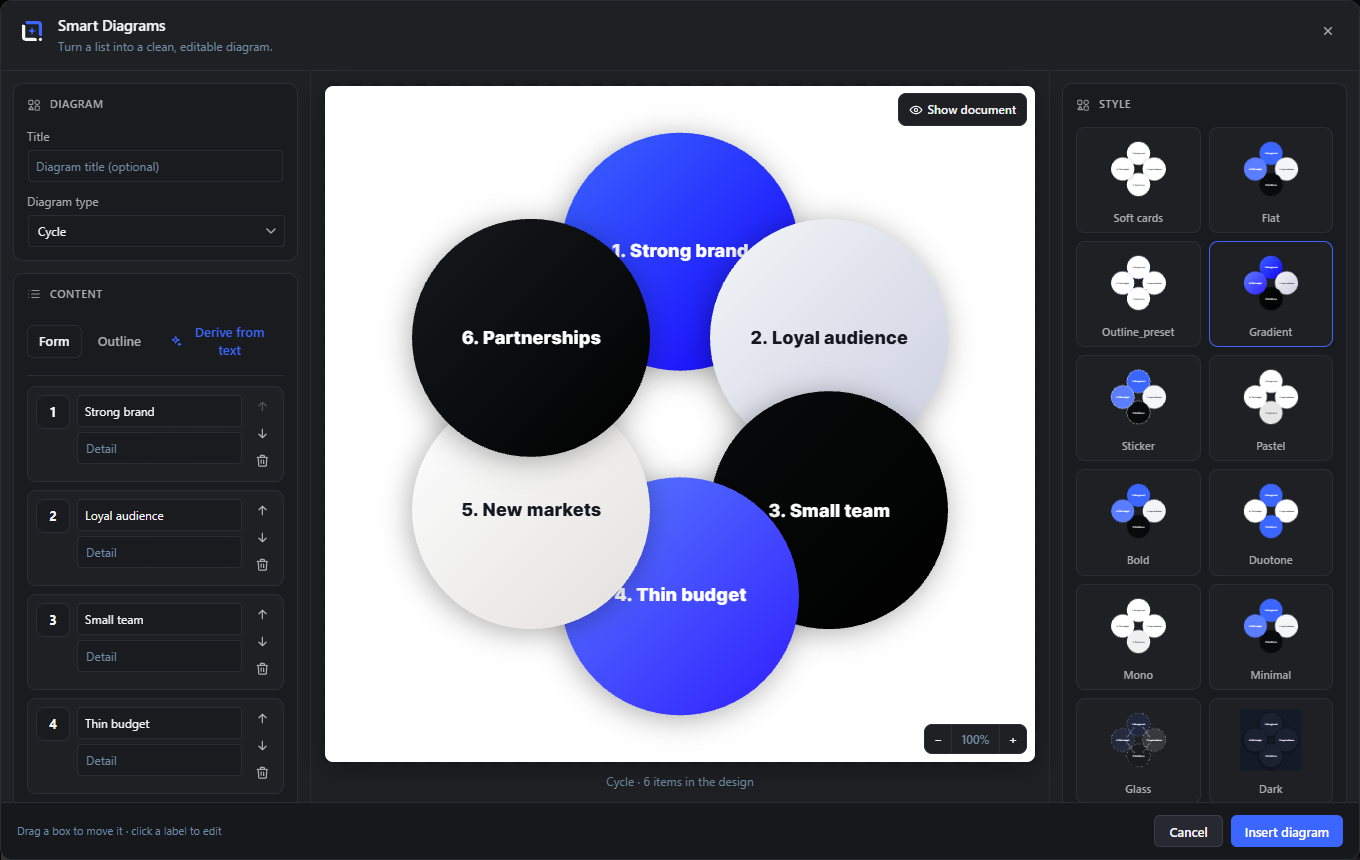
SmartArt-class diagrams as fully editable layers: process flows, snakes and chevron bands, timelines and quarter roadmaps, funnels, pyramids, cycles, hub-and-spoke, pillars, target rings, org charts and mind maps, SWOT and 2x2 matrices, Venn diagrams, pros and cons, and kanban boards.
Content comes from a guided form, a quick text outline, or an AI assist that extracts the structure from any pasted text. Style presets render live previews with your real content, brand-kit palettes and the full editor font library apply, and every node can carry an icon or emoji. Preview the diagram over your current design, drag any box and the connectors re-route to follow it, click a label to edit it right on the canvas, and restyle a single connector if you like.
Open it from the Extensions menu. Every diagram lands as a named group of real shape and text layers, laid out for your document format, and reopens via Edit Smart Diagrams.
Content (form, outline, derive) ExtensionAI 4 items #
Three ways in: a guided form, a quick text outline, or an AI assist that extracts the structure from any pasted text.
Items carry a title, an optional description and, for some types, a tag or bucket. The form and the outline stay in sync, so you can switch between them at any time.
Form
#One row per item with title and description, reorder arrows and remove. Grouped types (SWOT, Kanban, Venn) add a bucket selector per row.
Icon / emoji per item
#The badge button on a form row opens the editor's icon and emoji picker (search plus tabs); # returns to the plain number badge. The chosen icon replaces the number in the diagram.
Outline
#A plain-text view: one item per line as Title | Detail | Tag, with # Group headings sorting lines into buckets for grouped types.
Derive from text
#Paste any text and the assist extracts the structure: short parallel titles with one-line descriptions, in the language of your text. With no AI provider configured a local parser splits bullets, lines or sentences instead.
Style, colors and connectors Extension 7 items #
Thirteen style presets with live thumbnails, palette modes, brand kits and per-connector control.
Preset thumbnails render with your real content, so the gallery shows what the diagram will actually look like.
Style presets
#Soft cards, Flat, Outline, Gradient, Sticker, Pastel, Bold, Duotone, Mono, Minimal, Glass, Dark and Blueprint; a click restyles every node.
Shuffle designs
#Rolls a deterministic random combination of preset, palette, connector style and corner radius.
Palette
#Mixed (a hue wheel), Accent (one color), Mono (tints of one hue) or Dark; the base color feeds the wheel and tints.
Brand kit
#With more than one kit a dropdown picks which kit's colors drive the palette; Use brand colors switches the palette to it.
Connectors
#Global connector look (arrow, line, dashed, none) and route (straight, elbow, curved). Connectors attach to the nodes and re-route live when boxes are dragged.
Numbering, corners, density
#Number badges on or off, corner radius, and a compact / cozy / airy density that scales spacing.
Typography and background Extension 4 items #
The editor's full font catalog, size and weight control, and a transparent, colored or preset background.
Font
#Any family the editor offers (brand, custom, system, editor, Google), previewed in its own face.
Title / body size and weight
#Separate size sliders and weights for item titles and descriptions, plus a text alignment override.
Background
#Auto follows the preset (dark presets bring their panel), None keeps the diagram transparent for any design, Color adds a picked panel.
Show document
#Previews the diagram over your current design instead of a neutral stage, so colors and contrast are judged in context.
Preview interactions and insert Extension 3 items #
Drag boxes, edit labels in place, and insert everything as editable layers.
Drag a box
#Every node can be nudged from its automatic position; connectors follow and re-aim live. Reset placement returns to the pure layout.
Click a label
#Opens an in-place editor over the preview for that title or description.
Insert / Update diagram
#Inserts a named group of real shape and text layers laid out for the document format; when editing, the group updates in place inside its current box.