Living Photos
Turns a still photo into a living picture with a real 3D depth mesh, relighting, looping camera moves and depth aware effects.
Living Photos (overview and preview) ExtensionLocal AI 10 items #
Turns a still photo into a living picture with a real 3D depth mesh, relighting, looping camera moves and depth aware effects.
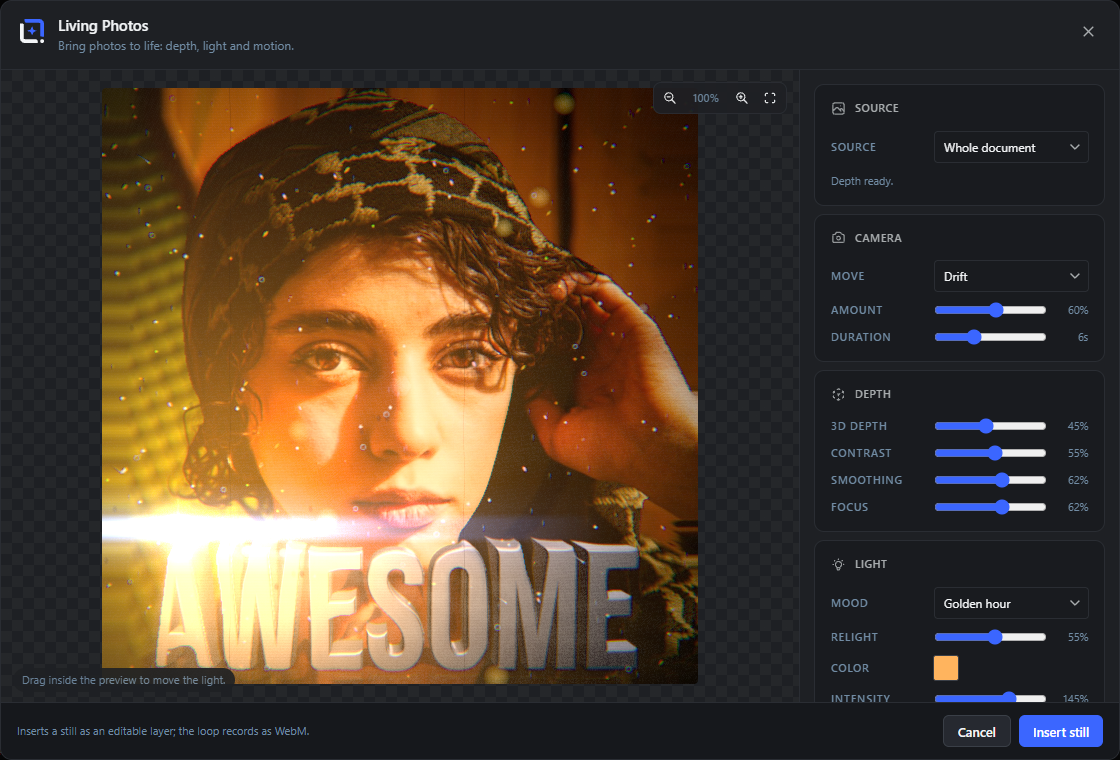
Bring a photo to life. Living Photos builds a real 3D depth mesh from any picture, with depth estimated locally in your browser so nothing leaves your site, and turns it into a living image with cinematic camera moves: push-in, drift, sway, vertigo, breathe and orbit, all as perfect loops.
Relight the scene physically with a draggable key light and extra light points, each with its own color and strength, soften the shadows, or start from mood presets from golden hour to neon, moonlight and campfire. Depth-aware atmosphere falls into place behind and in front of your subject: falling snow, drifting fog, glowing embers, floating bokeh.
Open it from the Extensions menu. Export a still as an editable layer, or record the animation as a seamless WebM loop straight into your media library.
Living Photos
#Opens the studio dialog. Choose it from the Generators menu to create a new effect, or use Edit on a layer that was made with it to re-open the same effect with its saved settings.
Source
#Picks what the effect is built from. Changing the source reloads the preview and, for the depth modes, recomputes the depth map.
Active layer
#Uses only the currently selected image, raster or smart layer as the photo. Best when you want the effect on one subject rather than the full canvas.
Tip. Falls back to the whole document if the active layer is not an image.
Whole document
#Flattens the entire document to one photo, then builds depth from that. Use it when the whole composition should come to life.
Effects only (overlay)
#Skips depth and relighting entirely. Effects (flares, particles, rays, light washes) render on a transparent layer over your document, so you can drop atmosphere onto any artwork.
Tip. This mode needs no AI model, so it works even if Depth Anything is not installed.
Depth model requirement
#The depth mesh needs the local Depth Anything model. If it is missing, the depth sources are blocked with a notice and only the overlay mode stays usable.
Zoom out
#Shrinks the preview by one step so you can see the whole frame. Does not change the exported result, only the on-screen size.
Zoom in
#Enlarges the preview by one step to inspect fine detail. Preview only, not part of the export.
Fit
#Resets the preview zoom to 100 percent so the frame fits the view again.
Tip. You can also scroll the mouse wheel over the preview to zoom.
Drag to move the light
#Drag inside the preview to reposition the key light. The light, its shadows and any lens flare follow the pointer.
Camera Extension 10 items #
Sets the looping camera move and how far and how long it travels.
The camera path always loops seamlessly (the last frame matches the first). Pick a move, then dial its strength and length.
Move
#Chooses the looping camera motion applied to the 3D scene.
Still
#No camera motion. The frame holds steady while depth, light and particles still animate.
Push-in
#Eases the camera toward the scene and back out again, a gentle dolly in and out.
Drift
#A soft side to side glide with a small vertical bob. This is the default, subtle parallax.
Orbit sway
#Swings left and right while turning to keep looking at the subject, like a small handheld arc.
Vertigo
#The dolly zoom effect: pushes in while widening the lens so the background seems to warp.
Breathe
#A very small in and out pulse. Adds quiet life without any obvious movement.
Orbit
#A full elliptical camera path that circles around the subject.
Amount
#How strong the camera move is. Higher values travel further and give more parallax.
Duration
#The length of one loop in seconds. Longer is slower and calmer, shorter is more energetic.
Depth ExtensionLocal AI 4 items #
Shapes the 3D relief built from the depth map: how far it pops, how the subject separates and where focus sits.
These dials shape the depth mesh. Contrast and Smoothing rebuild the mesh shortly after you stop dragging, so a brief pause is normal.
3D depth
#How far the photo pushes out into 3D. Higher values give stronger parallax and pop, lower keeps it flat.
Contrast
#Separates the subject from the background by stretching the depth range through an S-curve. Raise it when foreground and background feel stuck together.
Tip. Rebuilds the mesh a moment after you stop dragging.
Smoothing
#Softens depth edges so text and gradients do not turn into staircase steps. Higher smooths more but reduces sharp pop-out.
Focus
#Sets the focus plane from far (0) to near (100). The camera pivots around it and the depth of field blur focuses on it.
Light and relight Extension 24 items #
Relights the photo with a movable key light: mood presets, color, intensity, a screen-space wash and projected light patterns.
Relight replaces the photo's original lighting with a physical key light you can drag in the preview. Mood presets set color, intensity and position in one click; the sliders fine tune from there.
The light pattern (gobo) casts a shape, like window light or leaf shadows, over the whole frame.
Mood
#A one-click lighting preset. Picking one sets the relight amount, key color, intensity and light position (and sometimes a flicker or hue animation).
Original
#No relighting. Keeps the photo exactly as shot.
Golden hour
#A warm low sun coming from the right, soft and cinematic.
Portrait
#A classic two-point portrait setup: a warm key light from the upper right plus a cool shadowless rim light point on the lower left. A ready-made start for the Light points feature.
Neon
#A purple key from the upper left for a moody club feel.
Flashlight
#A bright neutral beam from the front center, like a torch pointed at the subject.
Moonlight
#A cool blue key from high on the left, a calm night look.
Sunset
#A warm orange key low in the frame with a violet counter-fill.
Cyberpunk
#A magenta key balanced by a cyan fill, high-tech and saturated.
Campfire
#A warm orange key from below that flickers over the loop, like firelight.
Studio
#A clean bright key from the upper right, an even product-shot light.
Noir
#A hard near-white key with a near-black fill for dramatic high-contrast shadows.
Party
#A red key that cycles its hue across the loop, a shifting disco light.
Thunderstorm
#A cool key from the top with lightning flashes fired once per loop.
Relight
#How much the key light takes over from the original photo lighting. At 0 the photo is untouched, at 100 it is fully re-lit.
Color
#The color of the key light. Opens the color picker; a mood preset also sets this.
Intensity
#The brightness of the key light. Above 100 percent it burns brighter than neutral, below it stays soft.
Blend mode
#Adds a screen-space color wash riding on the key light. Chooses how that wash mixes with the frame.
Blend amount
#Strength of the light-wash overlay set by the blend mode above.
Light pattern
#Projects a shaped light pattern (a gobo) across the frame, as if light passed through it.
Intensity (light pattern)
#How strong the projected light pattern is against the base lighting.
Pattern size
#Scales the light pattern up or down, changing how large the window panes or leaf gaps read.
Soft shadows
#Smooths the shadows the key light throws across the 3D relief: higher values widen the shadow edge into a real penumbra, lift the shadow core and suppress terrace artifacts at depth cliffs. 0% keeps the original hard look.
Light points
#Up to four extra light points besides the key light, each with its own color and strength (10-200%). Add one, then drag it directly on the preview or use the target button to place it with a click. They follow the master Relight amount and never cast shadows - use them for rim, accent and fill light, portrait-relight style.
Lens flare Extension 14 items #
Adds a lens flare anchored to the key light, with a choice of styles, rotation, size and blend.
The flare sits on the key light and moves with it. Different types give very different looks, from a full sun with ghosts to a single anamorphic streak.
Type
#Chooses the lens flare style, or turns it off.
Sun
#A bright central core with a soft halo and a trail of lens ghosts.
Anamorphic streak
#A single wide horizontal blue streak plus a core, the classic widescreen flare.
Cinematic
#A streak, core, halo and ghosts combined for a full movie-lens flare.
Starburst
#A many-spiked star burst, like a bright point through a small aperture.
Rainbow ring
#A wide circular spectral ring of rainbow color.
Anamorphic (cine)
#Strong blue horizontal streaks stacked for a heavy anamorphic look.
Ghosts
#A chain of polygon lens ghosts marching across the frame, without a big core.
Vintage
#Warm amber ghosts for an older, golden lens feel.
Glow
#A soft wide bloom around the light with no hard flare elements.
Sparkle
#Crossed twinkle bursts, a glinting highlight.
Rotation
#Rotates the flare. Only shown for flare types that can rotate (streak, cinematic, starburst, rainbow ring, sparkle).
Size
#Scales the whole flare up or down.
Blend mode (flare)
#How the flare mixes into the frame. Additive glows brightest, Normal is the most contained.
Look (color grade and finish) Extension 13 items #
Cinematic finishing: a color-grade preset plus bloom, depth of field, rack focus, film grain and vignette.
The Look preset sets an overall color grade (split tone, saturation, contrast). The sliders below add finishing effects on top.
Look
#A color-grade preset applied as a finishing pass.
None
#No color grading, colors stay neutral.
Cinematic
#Teal shadows and warm highlights with a little more saturation and contrast, a film-style grade.
Warm
#Pushes the whole image warmer toward orange.
Cool
#Pushes the whole image cooler toward blue.
Vintage
#A faded, desaturated warm look with softer contrast.
Black & white
#Removes all color and adds a touch of contrast for a monochrome result.
Dreamy
#A soft, slightly magenta grade with lowered contrast.
Glow
#Adds a bloom that spreads light out of bright areas for a glowing finish.
Depth of field
#Blurs the parts of the scene away from the focus plane, like a shallow lens. Uses the Focus dial to decide what stays sharp.
Rack focus
#Rides the focus plane from near to far and back across the loop, a moving focus pull.
Film grain
#Adds fine loop-safe grain for an analog texture.
Vignette
#Darkens the corners to draw the eye to the center.
Glitch and retro Extension 6 items #
A retro and glitch pass: analog film wear, digital glitch, scanlines, color fringing, heat warp and a light zoom.
Analog film
#Adds projector gate weave, scratches, dust and flicker for an old-film feel.
Glitch
#Displaces horizontal slices of the image at random, a digital signal glitch that reseeds through the loop.
Scanlines
#Overlays fine horizontal scan lines like an old CRT screen.
Color fringe
#Splits the red and blue channels toward the edges, chromatic aberration like a cheap lens.
Warp
#A heat-haze ripple that wobbles the image with a loop-safe sine field.
Light zoom
#Streaks a radial blur outward from the key light, a zoom-burst of light.
Effects (atmosphere and particles) Extension 18 items #
Depth-aware atmosphere: god rays, bokeh, ten particle systems, fog, light rays, light leaks and global particle controls.
Particles are placed in 3D through the depth so they weave in front of and behind the subject. Each slider sets the density of one system; the Size, Speed and Wind dials affect them all.
Sun rays
#God rays that pour warm light from bright areas toward the light, blocked by darker shapes.
Bokeh lights
#Soft glowing out-of-focus light discs as a post effect. Distinct from the Bokeh particle system below.
Snow
#Falling snowflakes drifting through the depth of the scene.
Embers
#Glowing orange sparks rising and twinkling, like from a fire.
Bokeh
#Large soft golden light orbs floating in front of the scene, an in-scene bokeh particle system.
Dust
#Tiny drifting dust motes catching the light.
Rain
#Falling rain streaks slanted by the wind.
Leaves
#Autumn leaves tumbling and spinning as they fall.
Petals
#Soft flower petals drifting down.
Fireflies
#Glowing green-yellow fireflies wandering and blinking.
Bubbles
#Translucent soap bubbles rising through the frame.
Meteors
#Bright meteors streaking across with long tails.
Fog
#Soft translucent fog layered through the depth, hazing the background.
Light rays
#Drifting volumetric light rays fanning out from the key light in screen space.
Light leaks
#Colored light leaks that drift across the frame like film edge fogging.
Size
#Global scale for all particles at once. Above 100 makes them bigger, below smaller.
Speed
#Global speed for all particle motion.
Wind
#Sideways wind pushing all particles. Negative blows left, positive blows right.
Weather Extension 2 items #
Lens-level weather: raindrops on the glass and lightning flashes.
Motion (flow animation) Extension 4 items #
Paints a flow field so parts of the photo drift like water or smoke, with pinned still areas.
Draw arrows in the preview to say where pixels should flow, and drop anchors where things should stay still. The flow loops seamlessly.
Arrows
#Turns on arrow drawing. Drag in the preview to add a flow arrow pointing where that area should move. The button reads Done while active; click it again to stop drawing.
Tip. Longer drags create stronger, wider flow.
Anchors
#Turns on anchor placing. Click in the preview to pin an area so it stays still against the surrounding flow. Reads Done while active.
Tip. Use anchors on faces or logos that should not warp.
Clear
#Removes all flow arrows and anchors at once, resetting the flow field.
Speed
#How fast the flow animation moves along the arrows.
Export and insert Extension 8 items #
Insert a still layer, record the loop as WebM, or export an interactive HTML snippet, plus the dialog's insert and cancel actions.
The still bakes the neutral pose (no camera offset) so the frame shows the whole document. The loop records the live preview as a seamless WebM. The interactive HTML export uploads the photo and depth map and gives you a self-contained parallax snippet for any HTML widget.
Video size
#Output width for the recorded WebM loop.
Record WebM to Media Library
#Records one seamless loop and uploads it into the media library. Chrome, Edge and Firefox record WebM; Safari records MP4, and the file is named accordingly. A browser whose recorder can do neither says so instead of starting.
Download WebM
#Records one seamless loop and downloads it as a video file instead of uploading it: WebM in Chrome, Edge and Firefox, MP4 in Safari.
Interactive HTML (Elementor)
#Uploads the photo and its depth map, then builds a self-contained interactive parallax snippet you can paste into any HTML widget. Needs a photo with depth, so it is off in overlay mode.
Copy code
#Copies the generated HTML snippet to the clipboard. Appears after the snippet is built.
Download HTML
#Saves the generated snippet as a living-photo.html file. Appears after the snippet is built.
Insert still / Update FX
#The primary button. On a new effect it inserts a still frame as an editable layer named FX still (or FX overlay in overlay mode); when editing it updates the existing layer in place and re-saves the settings.
Tip. Re-opening the layer with Edit re-runs the effect, the saved depth map travels with it.
Cancel
#Closes the studio without inserting or changing any layer. The Escape key and clicking the dark backdrop do the same.