Soundwave Art
The waveform of a song, a heartbeat or an episode, styled into a poster or a player card.
Overview ExtensionLocal AI #
The waveform of a song, a heartbeat or an episode, styled into a poster or a player card.
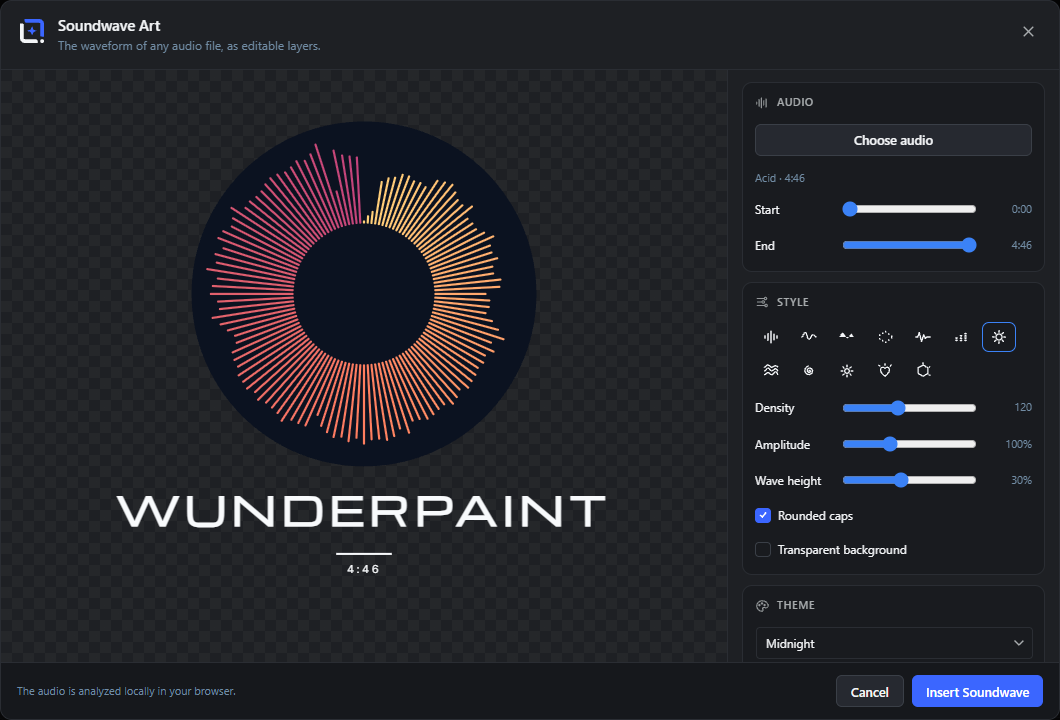
The waveform of any audio file as a poster: pick a track from the media library, the wedding song, a heartbeat, a podcast episode, and style it as bars, a line, filled, dots, pulse, LED, a circle, ridgeline mountain lines, a spiral that winds the whole song into one image, sunburst rings, or a heartbeat running around a heart contour.
Color it solid, with curated gradients including gold, copper and chrome foils, or let the sound pick the colors, dark where the bass sits, bright where the treble lives. Add neon glow, a mirror reflection, or split the left and right channel into two colors.
Open it from the Extensions menu. Insert as a classic poster with title, subtitle and duration, or as a music player card with progress bar and timestamps, all as editable layers. The audio is analyzed locally in your browser, and every wave reopens via Edit Soundwave Art.
Audio (pick a track and trim) ExtensionLocal AI 4 items #
Choose an audio file from the media library and trim the range that becomes the wave.
Soundwave Art turns any audio file into a waveform poster. The Audio card is where you pick the track. It is decoded locally in your browser with the Web Audio API, so nothing leaves the page, and you can trim which part of the track the wave covers.
Choose audio
#Opens the WordPress media library filtered to audio files, so you can pick the wedding song, a heartbeat, a podcast clip, or any track. The confirm button in that picker reads "Use audio".
Audio info line
#A small line under the button showing the chosen track's title and its length once decoded.
Start
#Trims where the wave begins, as a position along the track. Drag it in to skip a quiet intro. The readout shows the timecode.
Tip. Start and End keep at least a 2% gap so the wave is never empty.
End
#Trims where the wave ends, as a position along the track. Drag it in to drop a long outro or fade.
Style (wave shape and dynamics) Extension 17 items #
Twelve wave styles plus density, amplitude, height and cap controls.
The Style card sets how the waveform is drawn. Pick one of twelve visual styles, then shape it with density, amplitude, and height sliders and two toggles.
Bars
#Draws the wave as separate vertical bars, one per sample bucket. The classic audiogram look.
Line
#Draws the wave as a single continuous outline that traces the peaks. A clean, minimal look.
Filled
#Draws the wave as a solid filled shape under the peak outline, for a bolder, poster-like block.
Dots
#Draws the wave as columns of dots that rise and fall with the peaks, for a softer, dotted texture.
Pulse
#Draws the wave as a single heartbeat-style pulse line with sharp spikes. Good for a heartbeat recording.
LED
#Draws the wave as stacked LED segments, like a hardware level meter with discrete blocks.
Circle
#Wraps the waveform around a ring so it radiates from the centre. Always rendered in a square tile.
Ridgeline
#The song as stacked mountain lines, one row per slice of the track, each ridge occluding the ones behind it - the classic record-sleeve poster look. Reads a much finer peak profile than the bar styles.
Spiral
#The whole song wound into a spiral from the center outward - the full track in one image. Bars taper toward the center so the inner windings stay crisp.
Sunburst
#Two or three concentric rings of radial bars, each ring carrying a slice of the song, with room for a title in the middle - the vinyl-label look.
Heartbeat
#The bars follow a heart outline, radiating outward from the contour - the wedding-song classic: the heartbeat runs around the heart.
Hexagon (contour)
#Like Heartbeat, but the bars run along a hexagon outline - a clean technical badge shape.
Density
#Sets how many bars or samples make up the wave. Lower values give chunky, sparse bars; higher values give a fine, detailed wave.
Amplitude
#Scales the height of the peaks. Raise it to exaggerate quiet passages, lower it to tame a loud, clipped track.
Wave height
#Sets how tall the wave band is, as a share of the poster width. It applies to the flat (non-circle, non-shape) styles.
Tip. When a Shape mask or the Circle style is active the wave is drawn in a square tile instead, so this slider does not change its size.
Rounded caps
#Rounds the ends of the bars and lines instead of leaving them squared off. A softer look.
Transparent background
#Drops the wave tile's background so only the wave itself is drawn, letting whatever is behind it show through.
Theme Extension 1 item #
Choose a color theme for the wave and its background.
The Theme card is a dropdown of named presets. Each one sets the background and wave colors together. Picking a theme clears any custom colors you set under Colors.
Theme tiles
#A dropdown of color presets. Pick one to recolor the background and wave in one step.
Tip. Choosing a theme resets the Background and Wave color overrides back to that theme's colors.
Colors Extension 11 items #
Solid, gradient or sound-driven coloring plus glow, reflection and stereo split.
The Colors card lets you fine-tune the two colors the theme provides. Each row has a color swatch and an Auto button that returns it to the theme's color.
Background
#Sets a custom color for the wave tile's background, overriding the theme. Opens the editor's color picker.
Wave
#Sets a custom color for the waveform itself, overriding the theme. Opens the editor's color picker.
Auto
#Clears the custom color on its row and returns it to the current theme's color. There is one Auto button per color.
Solid
#One wave color from the theme or your override - the classic flat poster look.
Gradient
#A curated color gradient across the wave. Ten presets including gold foil, copper and chrome metallics that read as printed foil.
Sound color
#The sound itself picks the colors: bassy, soft passages take the first gradient color, trebly, bright passages the last. Every song gets its own unique color fingerprint.
Color flow
#For gradients: run the colors along the wave from left to right, or map them to loudness so quiet parts and peaks get different colors.
Glow
#Neon glow around the wave, drawn as layered halo passes. Strongest on dark themes - 0 turns it off.
Mirror reflection
#Adds a fading mirrored copy below the wave, like a music player card. Available for the linear styles (bars, line, filled, dots, pulse, LED).
Stereo split (L/R)
#Draws the left channel above the midline and the right channel below, each in its own color. Only enabled for stereo tracks.
Right channel
#The color of the lower, right-channel half when the stereo split is on.
Shape (mask) Extension 5 items #
Optionally clip the wave into a square, rounded square, circle, heart, or hexagon.
The Shape card masks the wave tile into a decorative outline. Choosing anything other than Square draws the wave inside a centred square tile clipped to that shape.
Square
#No mask: the wave fills its rectangle normally. The default.
Rounded
#Clips the wave tile to a rounded square (squircle) for softer corners.
Circle
#Clips the wave tile to a circle.
Heart
#Clips the wave tile to a heart outline. A romantic frame for a wedding song or first dance.
Hexagon
#Clips the wave tile to a hexagon.
Text block Extension 6 items #
Add the poster title, subtitle, duration, and choose the text layout.
The Text block card adds the classic poster text under the wave. It only appears when inserting a new soundwave, not when editing an existing one. The title is filled from the track name until you type your own.
Layout
#Classic poster (centered title, divider, subtitle and duration line), Player card (left-aligned title with a progress bar, dot and elapsed/total timestamps - a paused song as a poster), or no text at all.
Title
#The large headline on the poster, usually the song or track name. Auto-filled from the audio title until you edit it.
Tip. Renders in uppercase on the poster.
Subtitle
#A smaller line under the title, for the artist, a date, or a short phrase. Leave it empty to hide it.
Text size
#Scales the whole text block (title, subtitle, duration) up or down together.
Duration line
#Adds a small line showing the length of the trimmed clip (for example 3:42) under the subtitle.
Player card
#Lays the poster out like a music player: progress track with a dot at the paused position, elapsed and total time, then title and subtitle left-aligned. Every part is a real editable layer.
Video (audiogram export) ExtensionLocal AI 8 items #
Preview and export an animated audiogram video with the audio, saved to the media library.
The Video card turns the still wave into a moving audiogram: the wave animates to the music and the audio is muxed in. You can preview it in the dialog and export it to the media library. Everything is recorded locally in your browser.
Format
#Sets the video's aspect ratio and resolution. Square for feeds, landscape for players, portrait for stories and reels.
Animation
#Chooses how the wave moves. Equalizer makes the bars dance to the live spectrum; Progress sweeps a playhead across the full wave; Scrolling moves the wave past a fixed centre line.
Include title text
#Shows the title and subtitle text on the exported video frame. Turn it off for a clean wave-only clip.
Video background
#Sets the stage color behind the wave tile in the video, overriding the automatic choice. Opens the color picker.
Auto (video background)
#Clears the custom video background and returns to the automatic stage color, which contrasts with the wave tile.
Play preview
#Plays the audio and animates the wave in the dialog at half resolution, so you can check the motion before exporting. The button then reads "Stop preview".
Export video
#Records the animated audiogram with sound and uploads it to the media library. Uses MP4 where supported, otherwise WebM.
Tip. Keep this tab in the foreground while recording, and clips longer than 5 minutes are not supported.
Cancel export
#Stops an export that is in progress and discards it. Only visible while recording.
Insert and close Extension 3 items #
Insert the soundwave poster into the document, or cancel out.
The footer holds the two main actions. Inserting adds the wave as a baked image plus real title, subtitle, duration, and divider layers, grouped together.
Cancel
#Closes the studio without changing your document. The same as pressing Escape, clicking the X, or clicking outside the dialog.
Insert Soundwave
#Adds the poster to your document: the wave as an image, plus the title, subtitle, duration, and divider as real layers, all in one group. Disabled until an audio file is analysed.
Tip. The wave image stores its settings, so "Edit Soundwave Art" reopens this studio on the same track.
Update Soundwave
#Replaces the button label when you reopen an existing soundwave. It re-bakes the wave and settings in place instead of inserting a new group.