Ad Banners
A short brief becomes a whole set of on-brand ad banners, copy first, images second, all in one dialog.
Overview ExtensionAI #
A short brief becomes a whole set of on-brand ad banners, copy first, images second, all in one dialog.
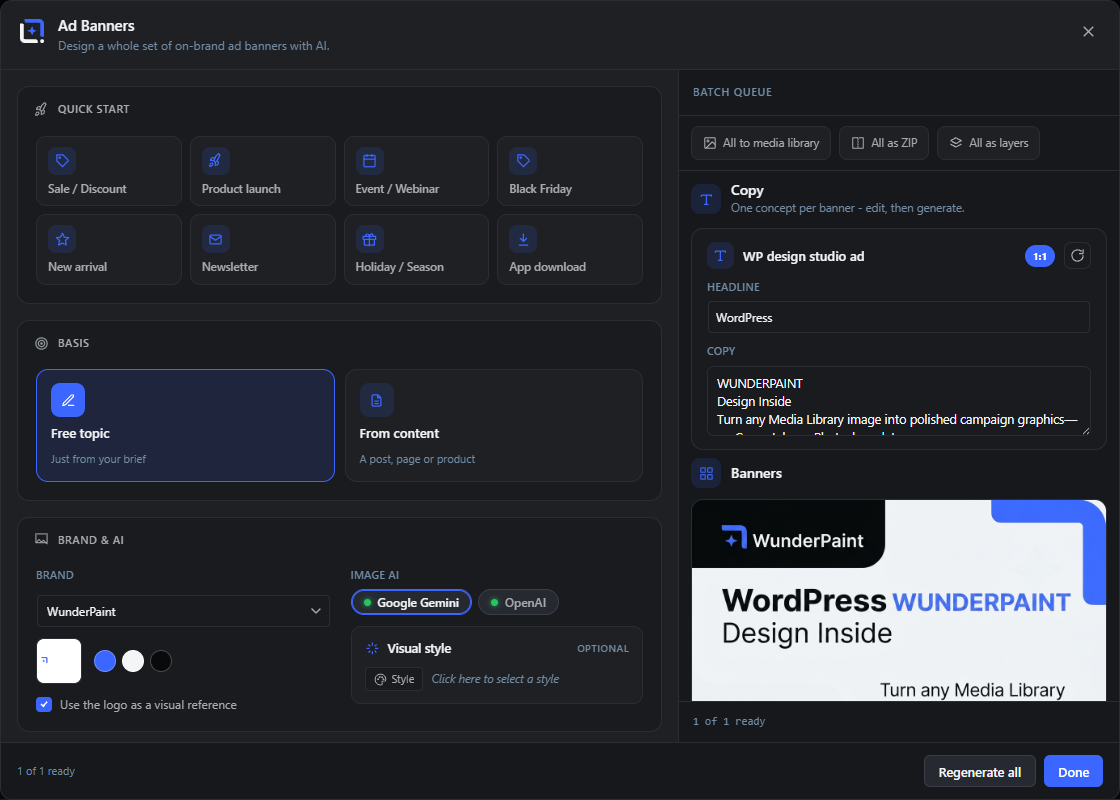
Turn a short brief into a whole set of on-brand ad banners. Pick a brand kit with logo, colors, fonts and industry, or define your own reference image and colors, then describe the audience, the goal, the offer and the key message. You can also build ads straight from a post, page or WooCommerce product: its image becomes the reference and its text feeds the copy.
The editor's text AI writes a copy concept per banner that you can edit before anything is rendered, then the image AI generates several banners at once in the formats you choose, from square and portrait to story and widescreen. A scannable QR code can be composited into every banner.
Open it from the Extensions menu. Send each result to the media library, download it, drop it onto the canvas, or regenerate it, all inside one dialog. It uses your configured AI provider, exactly like the AI Studio panel.
Ad Banners dialog ExtensionAI 5 items #
The main modal that turns a short brief plus your brand into a whole set of AI ad banners.
Ad Banners opens from the editor's Extensions menu and fills one modal split into two panes: the brief on the left, a live Batch queue (copy first, then the finished banners) on the right.
It works in three moves: fill in the brief, write the copy with the text AI, then generate the banner images with the image AI. The brand logo (or a picked post image) rides along as a visual reference so the ads stay on brand.
Design a whole set of on-brand ad banners with AI.
#The subtitle shown under the dialog title. It is a description, not a control.
Tip. Everything happens in this one modal, no page reload.
Batch queue
#Heading of the right pane. It holds the live queue: your editable copy concepts first, then the banner images as they finish rendering.
Close
#The X in the top-right corner closes the dialog. It is blocked while copy or banners are still generating so a job is not lost.
Tip. Pressing Esc also closes the dialog, but only when nothing is generating.
Backdrop click
#Clicking the dimmed area outside the dialog closes it, the same as Close. It is ignored while a job is running.
Quick start (campaign presets) Extension 8 items #
One-click starting points that prefill the brief, formats, image style and copy tone.
The Quick start card sits at the top of the left pane. Each preset drops a ready-made campaign into the brief: it fills the goal, offer and key message, sets the banner formats, picks a visual style and a copy tone.
Presets are a starting point, not a lock: everything they set stays editable afterwards. They do not touch the audience field or the brand you picked.
Sale / Discount
#A high-energy discount campaign. Prefills a discount offer and an urgent call to action.
Product launch
#Announces a brand-new product with a clean hero look and confident wording.
Event / Webinar
#Drives signups for an event or webinar with a friendly, date-and-time-friendly poster layout.
Black Friday
#A premium Black Friday sale set with a dark, gold-accented look and urgent copy.
New arrival
#Showcases a new item in the range with a fresh, editorial product shot and very few words.
Newsletter
#Grows newsletter signups with a warm, inviting look and a welcome-offer angle.
Holiday / Season
#A seasonal campaign with a warm festive scene and emotional wording.
App download
#Pushes app downloads with a sleek device mockup and a bold call to action.
Basis (what the ad is based on) Extension 6 items #
Choose whether the banners come from your brief alone or from picked posts, pages or products.
The Basis card decides the source of each ad. Free topic builds only from the brief you type. From content pulls one or more posts, pages or products: each item's featured or product image becomes the visual reference and its text feeds the copy.
Picking several items runs a batch: one banner set per item. A live counter warns you if the total (items times formats) grows too large.
Free topic
#Builds the banners from your typed brief only, with no post or product attached. This is the default.
Tip. Use this when the campaign is not tied to a specific post or product.
From content
#Bases each banner on a chosen post, page or WooCommerce product. The item's image becomes the reference and its text feeds the copy.
Choose posts, pages or products…
#Opens the content picker so you can select the items to build banners from. Shown when no items are picked yet.
Add / change items
#Reopens the content picker to add more items or swap the current selection. Shown once at least one item is picked.
Picked item row
#Each selected post, page or product shows as a row with its thumbnail, title and type. If the item has no image, the row is tagged no image and the banner falls back to the brand logo as reference.
Remove (picked item)
#The small X on a picked item row removes just that item from the batch.
Content picker Extension 6 items #
A pop-over dialog to search and multi-select the posts, pages or products a batch is built from.
Opened from Basis when you choose From content. Pick a content type, search, then tap tiles to select several items at once. Your selection is kept as you switch type or search.
On confirm it loads each item's full context (title, text, image, link, and WooCommerce price for products) and returns to the brief. The first item's text can prefill the offer field, and its link can prefill the QR target.
Choose content
#The picker dialog title. Its subtitle explains that the item's image becomes the reference and its text feeds the copy.
Type dropdown
#Selects which content type to browse. It lists the post types the site exposes; if none are reported it falls back to Posts and Pages.
Search…
#A search box that filters the current type by title. It waits about 300 ms after you stop typing before reloading the grid.
Result tile
#Each result shows as a tile with a thumbnail (or a placeholder icon) and title. Tap to select or deselect; selected tiles show a check mark and stay selected across type and search changes.
Use selection
#Confirms the picked items and returns to the brief. The button shows the count in brackets and is disabled until at least one item is selected.
Cancel
#Closes the picker without changing the current selection.
Brand Extension 11 items #
Pick a saved brand kit or define your own colors and reference logo for the ads.
The Brand column (left half of the Brand & AI card) sets the look the banners follow. If you have saved brand kits, a dropdown lets you pick one or choose Custom. A kit shows its logo and color swatches.
With Custom (or when you have no kits) you supply your own reference image and up to six colors. The brand colors and logo are handed to both the copy writer and the image generator.
Brand kit dropdown
#Selects which saved brand kit the banners follow. Shown only when at least one kit exists. Picking a kit resets the logo toggle to on if that kit has a logo.
Custom
#The last option in the brand dropdown. It drops the saved kits and lets you define colors and a reference image by hand.
Tip. Automatically used when the site has no brand kits.
Use the logo as a visual reference
#When a picked kit has a logo, this checkbox decides whether that logo is attached to the image AI as a reference so it appears in the banner. On by default when the kit has a logo.
Reference image / logo
#In Custom mode, the image handed to the AI as the brand reference. It shows a thumbnail once set, or a placeholder icon when empty.
Upload
#Opens a file picker to upload an image from your device as the reference logo. Accepts any image file.
From media library
#Picks the reference image from the WordPress media library. Shown only where the media library is available.
Remove
#Clears the current custom reference image so no logo is attached.
Tip. Shown only once a custom image is set.
Colors
#The list of custom brand colors the banners are built around. Each color is a swatch you can recolor or delete.
Color (swatch)
#A single brand color. Click it to open the editor's color picker and change the value; the swatch updates to the picked color.
Add color
#Adds another color swatch to the custom brand palette, up to six. New swatches start at the editor blue.
Remove color
#The X on a color chip deletes that color from the palette.
Image AI and visual style ExtensionAI 6 items #
Choose the image provider and an optional visual style for the generated banners.
The AI column (right half of the Brand & AI card) sets which image provider renders the banners and, optionally, the visual style prompt.
If no provider is configured, a warning appears with a link to open settings, and the Create copy button stays disabled.
Image AI
#Provider pills that pick which configured image AI renders the banners. The active pill is highlighted; the editor's default provider is preselected when available.
No AI provider configured.
#A warning shown when no image provider is set up. Banners cannot be generated until one is configured.
Tip. Appears in place of the provider pills.
Open settings
#A link next to the no-provider warning that opens the editor settings in a new tab so you can add a provider.
Visual style
#An optional style prompt for the look of the banners (for example a preset chosen from the editor's style button). It is added to the image prompt for every banner.
Tip. Presets fill this for you; you can clear or replace it.
Click here to select a style
#The placeholder text inside the style box when no style is chosen. Clicking the box opens the editor's style menu.
Clear style
#The X on the style tag removes the chosen visual style so banners generate without a style prompt.
Campaign brief and copy style Extension 17 items #
The four brief fields and the copy tone that steer the AI-written ad copy.
The Campaign card holds the brief. Two fields per row: audience and goal, then offer and key message. These feed the copy writer and (offer, key message) the image prompt.
Below them, the Copy style chips pick a tone of voice for the wording. Only one tone can be active; tap it again to clear it.
Target audience
#Who the campaign is aimed at. Guides the copy so it speaks to the right reader.
Campaign goal
#What the campaign should achieve. Points the copy at the right outcome (signups, sales, downloads).
Offer / product details
#The concrete offer or product facts (discount, deadline, what is included). A multi-line field; it feeds both the copy and the banner image prompt.
Tip. Picking a product can prefill this from the product text.
Key message
#The single idea the ad should leave behind. A multi-line field that anchors the headline and the image.
Copy style
#A row of tone chips that set the voice of the AI-written copy. Choose one; tapping the active chip again turns the tone off.
Playful
#Copy tone: playful and light, with a wink.
Serious
#Copy tone: serious, factual and trustworthy.
Urgent
#Copy tone: urgent and scarcity-driven, with a strong call to action.
Luxury
#Copy tone: elegant, premium and exclusive.
Minimal
#Copy tone: minimal and clear, very few words.
Storytelling
#Copy tone: narrative and vivid, emotionally engaging.
Bold
#Copy tone: bold, confident and punchy.
Friendly
#Copy tone: warm, friendly and personal.
Witty
#Copy tone: witty and humorous, with a clever twist.
Benefit-led
#Copy tone: benefit-led, concrete customer value.
Emotional
#Copy tone: emotional and inspiring.
Banner set (formats and QR) Extension 14 items #
Choose up to five banner formats and, optionally, add a scannable QR code.
The Banner set card lists the formats you want, one tile per banner, up to five. Each tile shows a shape preview and a format dropdown. The card heading shows the current count.
A counter note reports how many banners the set will produce (items times formats) and warns when that exceeds the batch cap. At the bottom, an optional QR code can be composited into every banner after it renders.
Banner slot tile
#One banner in the set. Shows a preview of the chosen aspect and a dropdown to change its format. Add up to five.
Format dropdown
#Per-tile menu that sets the aspect ratio of that banner. Options are the seven ad formats below.
Add banner
#Adds another banner slot to the set. Hidden once five slots exist.
Remove banner
#The X on a tile removes that banner from the set. Disabled when only one slot is left.
1:1 (Square)
#Square banner for a feed or post.
4:3 (Landscape)
#Landscape banner for display or web placements.
3:4 (Portrait)
#Portrait banner for a flyer or pin.
3:2 (Photo wide)
#Wide photo-ratio banner for display.
2:3 (Photo tall)
#Tall photo-ratio banner for a pin or print.
16:9 (Wide)
#Wide banner for a leaderboard or cover.
9:16 (Story)
#Tall banner for a story or reel.
Count note
#A line under the tiles showing how many banners the set produces. In a batch it reads items times formats = total; it turns to a warning when the total passes the cap.
Add a scannable QR code
#A checkbox that composites a working QR code into the bottom-right corner of every banner after it is generated.
Tip. The QR is drawn on the client after generation, so it always scans (the image model would garble a baked-in code).
QR target URL
#The web address the QR code points to. Shown once the QR checkbox is on. Prefills from the picked item's link or the brand website when available.
Copy concepts (batch queue) ExtensionAI 6 items #
The editable copy the text AI writes, one concept per banner, before you render images.
After Create copy, the right pane fills with one editable concept per banner: a title, a headline and body copy. In a multi-item batch the concepts are grouped under each item's name.
Edit the wording freely, or reroll a single concept to get a fresh take. When happy, generate the banner set; each image uses the current copy, including your edits.
Concept title
#The name of a copy concept, taken from the AI response or numbered as a fallback. It labels each editable block.
Format badge
#A small tag on the concept header showing which banner format this copy is tied to (for example 16:9).
Reroll this copy
#Rewrites just this one concept with the text AI, keeping its format and group. Disabled while another job runs.
Headline
#The main line of the ad, rendered prominently on the banner. Editable; the strongest line from the AI lockup is used by default.
Copy
#The supporting body text (subline and optional call to action). Each line is rendered on the banner. Editable, three rows.
Group heading
#In a multi-item batch, a heading that separates the concepts belonging to each picked post, page or product.
Banner results and per-banner actions ExtensionAI 7 items #
The finished banner images with save, download, canvas and regenerate actions on each.
Once you generate the set, each banner renders in the queue below the copy, grouped per item in a batch. Banners generate a few at a time so the provider is not overloaded.
Each finished banner has its own action row. While rendering it shows a spinner; on failure it shows an error with a Retry button.
Generating…
#The loading state on a banner tile while the image AI renders it. A spinner with this label.
Generation failed
#The error state shown when a banner could not be produced. It prints the provider error and offers Retry.
Retry
#Re-runs generation for a single failed banner using its current copy.
To media library
#Saves this banner as a new image in the WordPress media library. After saving it switches to In library and is disabled.
Download
#Downloads this banner to your device as a PNG. The filename is built from the brand, concept and format.
Add as layer
#Drops this banner onto the current editor canvas as a new image layer, centred and scaled to fit.
Tip. Only available when the editor and document bridge are present.
Regenerate
#Renders this single banner again from scratch, picking up any copy edits you made.
Footer and batch actions ExtensionAI 9 items #
The footer buttons that drive each step, plus the bulk actions once banners are ready.
The footer changes with the step. Before copy exists it offers Cancel and Create copy. With copy but no images it offers Reroll all copy and Generate banner set. Once images exist it offers Regenerate all and Done.
A batch bar appears above the queue as soon as at least one banner is finished, letting you act on all of them at once.
Create copy
#Writes the copy concepts from your brief with the text AI. Disabled until an AI provider is configured. Shows Writing copy… while it runs.
Cancel
#Closes the dialog. Shown in the footer before any copy has been written.
Reroll all copy
#Rewrites every copy concept with a fresh pass of the text AI. Shown once copy exists but before banners are generated.
Generate banner set
#Renders every banner in the set from the current copy. Moves the flow to the image step.
Regenerate all
#Re-renders the whole set again. Disabled while any banner is still generating.
Done
#Closes Ad Banners. Shown once the banners are generated.
All to media library
#Saves every finished banner that is not already saved to the media library in one go, then reports the count.
All as ZIP
#Downloads every finished banner as PNGs bundled in a single ZIP file, named after the brand.
All as layers
#Drops every finished banner onto the editor canvas as image layers, each nudged so they do not stack exactly. Shown only with the editor bridge.