Reformat
One design, every platform size, without the crop: the layout re-arranges instead of being cut.
Overview Extension #
One design, every platform size, without the crop: the layout re-arranges instead of being cut.
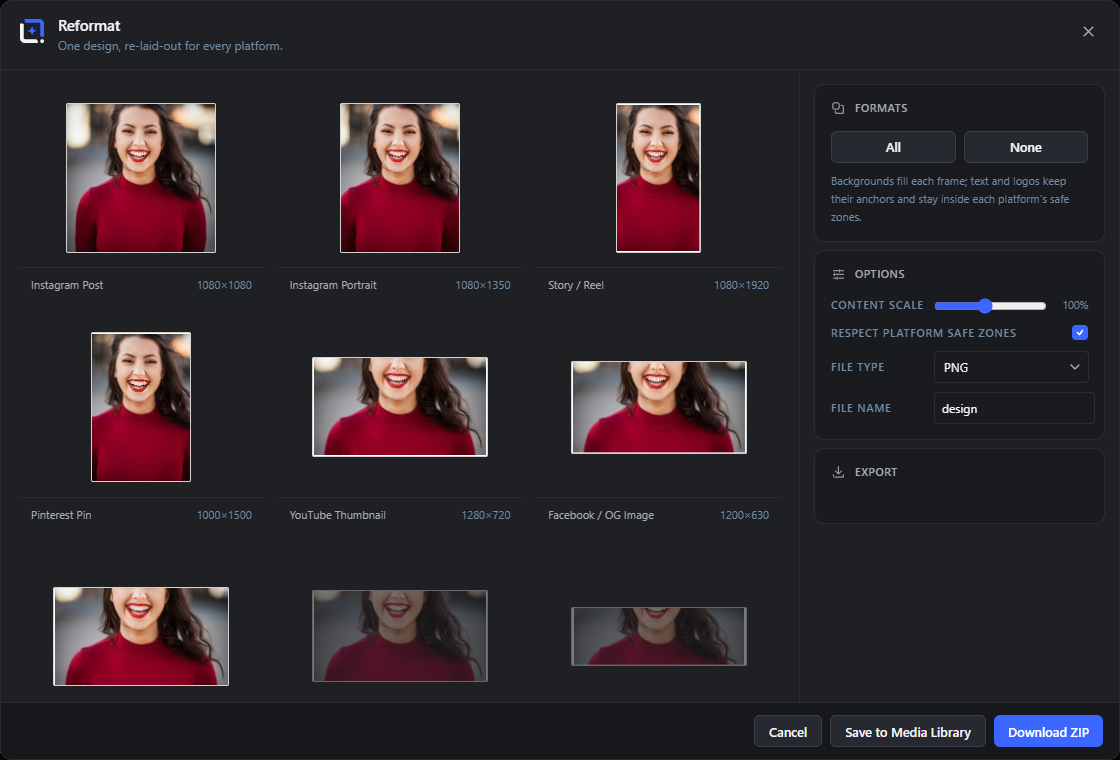
One design, every platform size, without the crop. Reformat re-lays-out your document for Instagram post, portrait and story, Pinterest, YouTube thumbnails, Facebook and OG, X and LinkedIn: backgrounds fill each frame while text, logos and content keep their position anchors, scale cleanly and respect each platform's safe zones, so stories keep clear of the username and caption UI.
A live preview grid shows every size at once, with an adjustable content scale for the layouts that need a nudge.
Open it from the Extensions menu. Download everything as one ZIP, or save every size straight to the media library.
Reformat dialog Extension 5 items #
Re-lays out the current design into every platform size without cropping, previewed as a live grid.
Reformat (registered as an Extensions generator) takes the open document and rebuilds it at each target platform size. Backgrounds cover-fill the new frame, while text and logos keep their composition anchors, scale uniformly, and stay inside each platform's safe zone.
The dialog shows a live preview grid on the left and the controls on the right (Formats, Options, Export). It needs a document with at least one layer to open.
One design, re-laid-out for every platform.
#The dialog subtitle. It describes the tool, it is not a control.
Tip. Requires at least one layer in the document, otherwise it shows a notice and does not open.
Preview grid
#The left pane renders a live thumbnail of the design in every format. Previews redraw when you change the content scale or safe-zone option.
Close
#The X in the header closes the dialog. Esc and clicking the backdrop also close it.
Cancel
#The footer button that closes Reformat without exporting.
Formats (target platforms) Extension 12 items #
The platform sizes to produce, each a toggle card, with All and None shortcuts.
The Formats card lists ten platform presets. Each is a card you tap to include or exclude; active cards are highlighted and every card shows its pixel dimensions.
Seven formats are on by default; the last three (LinkedIn Post, X Header, Facebook Cover) start off. Use All or None to flip the whole set at once. Each format carries a safe zone so content stays clear of platform UI.
All
#Selects every platform format at once.
None
#Clears the selection so no format is chosen. Export buttons disable until you pick at least one.
Instagram Post
#Square Instagram feed post.
Instagram Portrait
#Tall Instagram feed post.
Story / Reel
#Full-screen vertical story or reel. Its safe zone keeps content clear of the username row on top and the caption/CTA block at the bottom.
Pinterest Pin
#Standard Pinterest pin.
YouTube Thumbnail
#Video thumbnail. The safe zone avoids the timestamp and progress bar along the bottom.
Facebook / OG Image
#Facebook share and Open Graph link preview image.
X Post
#In-timeline image for X (Twitter).
LinkedIn Post
#LinkedIn feed image. Off by default; toggle it on if you need it.
X Header
#X (Twitter) profile header banner. Off by default.
Facebook Cover
#Facebook profile cover. Off by default. Its safe zone allows for the profile picture overlapping the lower left on desktop.
Options Extension 4 items #
Content scale, safe-zone respect, output file type and the base file name.
The Options card tunes how the re-layout looks and how files come out. The content scale shrinks or grows the design's content inside each frame, the safe-zone toggle keeps content clear of platform UI, and the file type and name control the export.
Changing the scale or safe-zone option redraws the preview grid live.
Content scale
#Uniformly scales the design's content (text, logos, foreground) within each target frame. Backgrounds still cover-fill; this only affects the anchored content. Lower to add breathing room, raise to fill more.
Respect platform safe zones
#When on, content is clamped inside each platform's safe zone so it does not collide with story caption bars, the YouTube timestamp, a Facebook profile picture, and similar UI. Turn off to use the full frame edge to edge.
File type
#The image format the reformatted files are saved as. JPEG flattens onto a white background at 90% quality; PNG keeps transparency.
File name
#The base name for every exported file. It is slugified (lowercased, non-letters turned to dashes); each file appends its format id. Falls back to design if left blank.
Export Extension 4 items #
Save every selected format to the media library or download them all as a ZIP.
The Export card and footer render each selected format at full size and hand them off. A status line reports progress (for example Rendering formats… (2/6)).
Both export buttons disable when no format is selected, and again while an export is in flight.
Save to Media Library
#Renders every selected format at full size and uploads each to the WordPress media library. Each upload is titled with the base name plus the format label. Reports how many saved and how many failed.
Download ZIP
#Renders every selected format and downloads them together in one ZIP file named <name>-formats.zip. This is the primary action.
Export status
#A line in the Export card that shows progress while rendering or saving (for example Saving to the media library… (3/6)), and the final result.
Select at least one format.
#An error shown if you try to export with no format selected. Pick a format first.