Cinematic Effects
A local WebGL engine that builds cinematic 3D backgrounds and effect overlays from stacked motifs, with no AI and no uploads.
Cinematic Effects (overview & canvas) Extension 8 items #
A local WebGL engine that builds cinematic 3D backgrounds and effect overlays from stacked motifs, with no AI and no uploads.
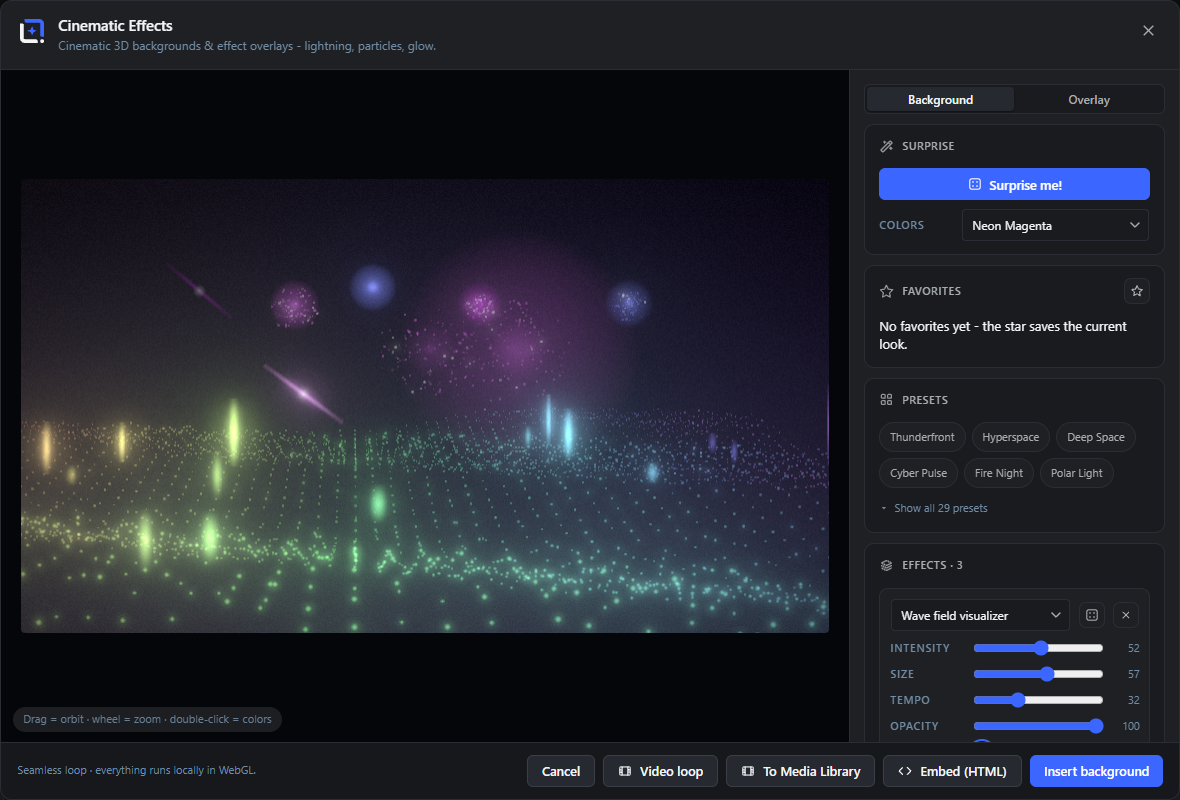
A cinematic effect engine for backgrounds and overlays, computed live in your browser with WebGL: no AI, no uploads. Stack up to three motifs from a large curated library spanning energy, particle forms, light, atmosphere, a cosmos family with black holes and comets trailing real dust-and-ion tails, retro sci-fi, fluid and material looks such as liquid chrome and ink bloom, HUD holograms and glitch, neon signs and a music visualizer, raymarched volumetrics and a whole lens-and-film family with true lens flares, light leaks, film burn, dust and scratches.
A formation family can gather your own logo, layer or text out of dust and disperse it again. Finish with bloom, vignette, grain, scanlines, a kaleidoscope, seamless camera moves, refraction distortion, anamorphic lens streaks and shape or text masks. Tint everything with cinematic palettes or your brand kit, and everything loops seamlessly.
Open it from the Extensions menu. Insert stills as editable background or overlay layers, export a WebM loop, or copy an interactive HTML snippet that plays the live effect on your website. Presets, favorites and a surprise roll get you somewhere good fast.
Background
#Sets the effect to fill the whole document as an opaque background layer, including its own dark backdrop. Use this when the effect is the base of your design.
Overlay
#Sets the effect to render on transparent alpha so it sits on top of your existing design. Use this to add glow, particles or light over artwork you already have.
Tip. In Overlay mode the Backdrop control is hidden because there is no background.
Show document
#Renders your current design once and places it behind the transparent overlay preview, so you see the effect over the real artwork instead of the checkerboard. Only appears in Overlay mode when the editor can render the document.
Tip. When editing an existing effect layer, that layer is excluded from the preview so its old baked frame does not show through.
Drag to orbit
#Click and drag on the preview to orbit the camera around the scene. This sets the horizontal and vertical camera angles.
Wheel to zoom
#Scroll the mouse wheel over the preview to zoom. Beyond the classic range the camera first flies deep into the scene, then tightens its field of view like a telephoto lens for true macro close-ups - procedural effects stay perfectly sharp at any magnification.
Double-click for colors
#Double-click the preview to jump to a random different palette. A quick way to try new color schemes without opening the palette list.
Seamless loop
#Every animated value is built from whole-number cycles per loop, so the first and last frame are pixel-identical. This is why exported loops never jump.
Tip. Everything runs locally in WebGL. There is no network call and no AI.
Player & timeline
#A transport bar under the preview: play or pause the loop and scrub the timeline to any moment. Stills and inserted layers bake exactly the frame you paused on, so you can snapshot the loop at its best.
Tip. Pause, scrub to the nicest frame, then insert - the baked layer keeps that moment while the saved settings still replay the full loop.
Effect library (left panel) Extension 4 items #
A browsable library of all 82 motifs with live-rendered preview tiles - click a tile to add or remove an effect.
The left panel lists every motif as a preview tile, grouped into the fifteen families. Thumbnails are rendered live by the effect engine itself, so each tile shows the real motif, not a static image.
Tiles of active effects are highlighted and carry a number badge showing the layer's position in the stack.
Preview tile
#One tile per motif with a live-rendered thumbnail. Clicking a tile adds the effect to the stack; clicking it again removes it. When the stack is full with three layers, a click swaps the last layer for the picked motif, and the last remaining effect cannot be removed.
Family folders
#Each family is a collapsible group with its motif count in the header. Fold the families you do not need to keep the list short; the panel remembers your folds while the editor stays open.
Search effects
#The search field filters tiles by motif name across all families and temporarily opens every family with a match. Clearing the search restores your folds.
Stack badge
#Active effects show a numbered badge on their tile. The number is the layer's position in the stack and matches the order of the layer cards in the right panel.
Effect stack (per-layer controls) Extension 16 items #
Stack up to three motif layers, each with its own intensity, size, tempo, opacity, color, blend mode and variation.
The Effects card holds your stack of motif layers. Each layer picks one of the 82 motifs and has its own sliders. Layers composite from bottom to top, so a typical look is atmosphere plus energy plus a light accent.
The card header shows the current layer count (for example Effects · 3).
Effect
#A dropdown that picks which of the 82 motifs this layer plays. It is grouped into the fifteen families (Energy, Particle forms, Light, Atmosphere, Cosmos, Retro sci-fi, Wonders, Fluid & material, Volumetric, Sculpted objects, Lens & film, Sci-fi & tech, Light color & music, Motion & organic, Waves & audio). Changing it rebuilds the layer with that motif's defaults but keeps your opacity.
Shuffle variation
#The dice button on a layer rolls a fresh random variation seed for that motif, reshuffling its internal look (positions, rotations, arrangement) without touching your sliders. Use it to get a different take on the same motif.
Tip. Each surprise roll also gives every layer a new variation seed.
Position (drag in preview)
#The crosshair button on a layer arms it for placement: drag in the preview and the effect follows the pointer in the camera plane, so every effect can sit at its own spot in 3D. Orbit first to place it in depth. A double-click in the preview sends the armed effect back to the center.
Remove effect
#The small x on a layer deletes that layer from the stack. It is disabled when only one layer remains, since the stack always needs at least one motif.
Intensity
#Controls the density, count or strike rate of the motif, for example the number of particles, beams, strikes or bars. Higher means busier and fuller.
Tip. Each motif maps this to its own count range, for example 2 to 6 lightning strikes or 900 to 4200 sphere particles.
Size
#Controls the size of the motif's elements, for example beam length, particle spread, ring radius or globe size. Higher makes the elements larger.
Tempo
#Controls how fast the motif animates. It maps to a whole-number of cycles per loop (1 to 6), which keeps the loop seamless at any tempo.
Opacity
#Sets how strong this layer is in the mix. Lower it to let a layer sit quietly behind the others.
Color: Auto
#The A swatch spreads the layer across all of the palette's colors automatically. This is the default and gives a varied, multi-color look.
Color: palette swatches
#The four color chips lock the layer to a single palette color instead of the auto spread. Pick one to make the motif a single consistent hue.
Custom color
#Opens the editor's own color picker to tint the layer with any exact hex color, overriding the palette. Uses the editor's swatch and popover, not a native OS picker.
Tip. Only shown when the host editor provides its color-button component.
Blend
#Sets how this layer mixes with the layers below it. Add and Screen make it glow and brighten, Normal stacks it flatly, and Multiply darkens.
Source
#For the Particle formation motif only, chooses whether the particles form from typed Text or from a captured editor Layer. Switches which input appears below.
Formation text
#The text field (shown when Source is Text) types the word the particles gather to spell. Limited to 24 characters.
Use active layer
#The button (shown when Source is Layer) captures the currently selected editor layer, trims it and uses its shape as the particle target. A thumbnail preview appears once captured.
Tip. Select a layer in the editor first, or it reports that none is selected.
Add effect
#Adds another motif layer to the stack, up to three total. It picks a motif you are not already using. The button disappears once you have three layers.
Look (palette, finish, camera & scene) Extension 19 items #
The global controls that tint, finish and shape the whole scene: palette, backdrop, bloom, vignette, grain, loop length, camera move, kaleidoscope, mirror, distortion, masks, color cycle, beat, morph and seed.
The Look card holds everything that applies to the whole scene rather than a single layer. It sets the color palette and backdrop, the post-processing finish (bloom, vignette, grain), the loop length, and a set of scene-wide transforms and rhythms.
All of these apply on top of your effect stack.
Palette
#Picks the color scheme that tints every layer set to Auto or to a palette swatch. Shows eight curated palettes as gradient bars; click one to apply it.
If your site has brand kits with at least two hex colors, they appear at the end of the palette row so you can tint effects with your own brand colors.
Tip. Brand kits also appear as color-lock options for the Surprise button.
Backdrop
#In Background mode, chooses the dark backdrop gradient behind the effect: the palette's own backdrop, or a fixed one. Choosing Custom reveals a color picker for your own backdrop tint.
Bloom
#Controls the glow bloom that spreads light from bright areas. Higher makes the whole effect softer and more luminous.
Vignette
#Darkens the edges of the frame toward the corners. Higher focuses the eye on the center and adds a cinematic feel.
Grain
#Film grain over the finished frame (0 to 100). Precision-safe noise at full pixel resolution, re-seeded 24 times per loop cycle - alive like real grain, yet the loop stays perfectly seamless. Background mode only.
Scanlines
#CRT-style scanlines over the finished frame (0 to 100, default 0): a subtle two-pixel darkening rhythm, multiplicative so transparent pixels stay untouched. Background mode only, sits right below Grain.
Loop
#Sets the length of the seamless loop in seconds. Shorter loops feel faster and busier; longer loops feel calmer.
Camera move
#Chooses an automatic camera motion over the loop. Static holds still, 360 orbit circles the scene, Pendulum swings back and forth, and Dolly pushes in and out.
Kaleidoscope
#Mirrors the frame into a number of radial segments for a symmetric kaleidoscope pattern. Off leaves the scene as-is.
Water mirror
#A checkbox that adds a reflected copy of the scene in the lower half, like a still water surface. Good for skyline and cityscape looks.
Distortion
#Applies a refraction field that warps the whole image. Heat haze shimmers, Water ripple waves, Glass bends smoothly, Shockwave pushes rings outward, and Gravity lens swirls space around an orbiting singularity.
Lens streaks
#An anamorphic post pass that stretches the brightest highlights into horizontal, subtly blue-tinted flares - the cinema-lens signature. 0 turns it off.
Shape mask
#Clips the whole effect inside a shape window so it only shows through that shape. Choose a circle, heart, star, or text outline. Text reveals a text field.
Mask text
#The text field (shown when Shape mask is Text) sets the word whose letters mask the effect. Limited to 24 characters.
Color cycle
#Rotates the hue of the whole scene over the loop, cycling through colors. Off keeps colors fixed; higher numbers make more full hue turns per loop.
Beat pulse
#Pulses the overall brightness a set number of times per loop, like a beat. Off holds steady brightness.
Scene morph (A to B)
#A checkbox that seamlessly crossfades the scene between two variations of itself over the loop, so it slowly shifts from one arrangement to another and back.
Seed
#The random seed that fixes the exact arrangement of every motif. The same seed always reproduces the same look. Type a value or press the dice to roll a new one.
Color palettes Extension 8 items #
The eight built-in cinematic palettes that tint the effects.
Each palette is an ordered set of four colors (light to accent) plus a matching glow tint and dark backdrop gradient. Layers set to Auto spread across the four colors; layers set to a swatch pick one of them.
Electric Blue
#Cool cyan-to-indigo blues. The default palette, good for tech, storm and hyperspace looks.
Neon Magenta
#Hot pinks and magenta running into indigo. Suits laser shows, night city and synthwave.
Fire
#Warm yellow, amber and orange into red. Suits embers, flames and solar looks.
Toxic
#Acid lime and green into cyan. A punchy cyber and data palette.
Ice
#White into pale sky blue. Clean and cold, good for aurora, chrome and polar looks.
Gold
#Cream and amber into deep gold. Warm and luxurious, good for dust and noir looks.
Violet Storm
#Lavender into deep violet. A dreamy, cosmic palette for nebula and enchanted looks.
Mono
#White into slate grey, near-neutral. Lets custom colors, color cycling or holo foil carry the hue.
Surprise & favorites Extension 5 items #
Roll a curated random look, optionally locked to your colors, and save looks you like.
The Surprise card composes a plausible cinematic stack from curated ranges (base plus energy plus light accent), never uniform chaos. The Favorites card stores looks you want to keep in local storage.
Surprise me!
#Rolls a fresh curated look and applies it instantly: a random palette, backdrop, finish and a sensible two or three layer stack, each with its own variation seed. Keeps your current mode (background or overlay).
Tip. Every layer in the roll also gets a random variation seed for variety.
Colors
#A dropdown that locks the color of every surprise roll. Leave it on Random colors, or pick a brand kit or a named palette so every roll lands on your chosen colors. Remembered per user.
Save as favorite
#The star button saves the current look (palette plus lead motif name and full settings) to your favorites for later reuse. Favorites are saved with your WordPress account, so they follow you across browsers and devices.
Favorite chip
#Each saved favorite appears as a labeled chip. Click it to reload that exact look while keeping your current mode.
Tip. With no favorites yet, a note explains the star saves the current look.
Remove favorite
#The small x on a favorite chip deletes that favorite from your list.
Presets (curated looks) Extension 29 items #
Twenty-nine curated one-click looks, each a full recipe of palette, backdrop, finish and a two-to-three-effect stack.
Each preset chip loads a complete look: palette, backdrop, bloom/vignette/grain, camera and a curated two or three layer stack. It keeps your current mode. Presets are a fast starting point you can then tweak.
The studio opens on the first preset, Thunderfront, by default.
Thunderfront
#An Electric Blue storm: fog banks, lightning strikes and god rays over the palette backdrop.
Hyperspace
#An Ice warp tunnel with anamorphic flares on black. A fast forward rush.
Deep Space
#A Violet nebula with a particle sphere floating in it.
Cyber Pulse
#A Toxic wave grid with pulse waves and a laser fan on charcoal.
Fire Night
#A Fire scene of rising embers, fog and warm god rays.
Polar Light
#An Ice aurora with a faint nebula on a midnight backdrop.
Gold Dust
#Golden embers with god rays and soft fog.
Laser Show
#A Magenta laser fan with pulse waves and fog on black.
Neon Net
#A Toxic plexus net with an energy orb and anamorphic flares on charcoal.
Noir Smoke
#Gold smoke with light pillars and embers on black, heavy vignette.
Outrun
#A Magenta synthwave grid with a starfield and anamorphic flares.
Event Horizon
#A Gold black hole with a starfield and infalling debris on black.
Star Death
#An Ice supernova inside a nebula with a meteor shower.
Stardust Sign
#Gold particle formation spelling WOW with a starfield behind it.
Liquid Metal
#Ice liquid chrome with caustics, glass distortion on, on black.
Data Stream
#A Toxic circuit flow with a HUD hologram and glitch on charcoal.
Solar Storm
#A Fire solar surface with a comet and embers, beat pulse 4, on black.
Spectrum
#A Mono holo foil with a prism split and music visualizer, color cycle 2x, on black.
Firefly Meadow
#Gold fireflies with falling petals and fog on a midnight backdrop.
Sound Wave
#Magenta neon silk waves with an audio waveform on black.
Visualizer
#A Toxic wave field visualizer with spectrum bars and neon flow lines on black.
Storm Volume
#Raymarched storm clouds lit from inside by lightning, finished with anamorphic lens streaks on the electric palette.
Chrome Dream
#A polished chrome knot floating in fog with embers and lens streaks - cool studio metal on ice.
Crystal Rift
#Crystal shards over a violet nebula, warped by the gravity-lens distortion.
Alien Core
#A gyroid lattice around liquid metal blobs in toxic green, with lens streaks.
Sun Flare
#A full lens flare with iris ghosts over soft fog, plus star glints on the fire palette - a cinematic sun hit.
Golden Hour
#Light leaks, a sunbeam dust shaft and golden bokeh - warm late-afternoon glow for photos.
Premiere Night
#Spotlight sweeps crossing over bokeh and star glints - the red-carpet opening shot.
Vintage Reel
#Film dust and scratches, film burn and a soft light leak with heavy grain - an old projected print.
Motifs: Energy Extension 7 items #
Seven high-voltage motifs: lightning, laser fan, pulse waves, electric arcs, energy orb, fireworks and electron orbitals.
The Energy family covers bright electric and explosive effects. They read as the active, hard-hitting layer in a stack. Intensity, Size and Tempo on each layer control the count, scale and speed.
Lightning storm
#Branching lightning bolts strike down with an ambient sky flash and a fading afterglow between hits.
Laser fan
#A fan of straight laser beams spreading from a bright source point, with a haze glow.
Pulse waves
#Concentric rings expanding outward from a glowing core, like a radar or sonar ping.
Electric arcs
#Jittery horizontal electric arcs crackling between glowing end-orbs.
Energy orb
#A glowing core sphere ringed by orbiting sparks and surface crackle arcs.
Fireworks
#Shells that launch and burst into showering sparks that fall and fade.
Electron orbitals
#Three tilted particle rings spinning around a bright core at different speeds, each shell carrying its own electron highlight.
Motifs: Particle forms Extension 6 items #
Six structured particle motifs: wave grid, sphere, tunnel, plexus, starfield and DNA.
The Particle forms family builds recognizable geometric particle structures. They work well as the base layer of a scene.
Wave grid
#A flat grid of points rippling with two crossing travelling waves, like a rolling landscape of dots.
Particle sphere
#A breathing sphere of particles that gently pulse in and out.
Warp tunnel
#A forward rush through a tunnel of streaming particles with a clear central bore.
Plexus net
#A constellation of nodes joined by lines between near neighbours. The net reacts to the pointer, pushing away from the cursor.
Tip. Move the pointer over the preview to push the nearest nodes.
Starfield
#A drifting field of stars with a few shooting stars streaking across each loop.
DNA helix
#A rotating double helix of two particle strands joined by rungs, kept perfectly in sync.
Motifs: Light Extension 5 items #
Five beam and glow motifs: god rays, anamorphic flares, aurora, light pillars and bokeh lights.
The Light family adds atmospheric light and lens effects. They shine as accent layers on top of a busier base.
God rays
#Radiating shafts of light from a bright point, with drifting dust motes floating in the beams.
Anamorphic flares
#Wide horizontal lens flares (the cinematic streak) with a bright core that pulses.
Aurora
#Luminous curtains of northern lights that wave and shimmer.
Light pillars
#Vertical beams of light rising like stage spotlights or aurora columns.
Bokeh lights
#Out-of-focus lights: big soft discs drifting on tiny loops and breathing in brightness - a photographic backdrop staple.
Motifs: Atmosphere Extension 5 items #
Five ambience motifs: fog banks, nebula, sparks and embers, smoke and neon rain.
The Atmosphere family fills the scene with soft volumetric haze and floating particles. They make excellent quiet base or mid layers.
Fog banks
#Slow drifting clouds of soft fog puffs that add depth and haze.
Nebula
#Billowing clouds of colored gas with a scattering of stars, like a deep-space cloud.
Sparks & embers
#Glowing embers rising and floating upward like sparks from a fire.
Smoke
#Billowing rising columns of soft smoke.
Neon rain
#Glowing rain streaks falling on a seamless wrap, with a faint ground glow where they land.
Motifs: Cosmos Extension 9 items #
Nine space motifs: black holes, supernovae, planets, debris, meteors, galaxies, solar surfaces, comets and pulsars.
The Cosmos family is the largest, covering deep-space phenomena. Many make strong single-subject centerpieces for a scene.
Black hole
#A dark event horizon ringed by a swirling accretion disk, a thin photon ring and matter spiralling inward.
Supernova
#A star that gathers, collapses, then flashes and bursts outward with an expanding shockwave.
Neon planet
#A neon wireframe globe with surface city lights, a glowing atmosphere and an orbiting satellite.
Debris field
#Rim-lit rock shards tumbling through a haze of fine dust.
Meteor shower
#Meteors streaking across a background star field.
Galaxy spiral
#A rotating spiral galaxy with two or three arms and a bright glowing core.
Solar surface
#A churning, turbulent star surface with a glowing corona and edge flares.
Comet
#A real comet: white-hot core inside a colored coma, a curved dust tail that widens and fades behind the head, a straighter ion tail at a slight angle and sparkling debris - all trailing the head along its arc across the frame.
Pulsar beacon
#A spinning neutron star firing sweeping beams with expanding rings pulsing outward.
Motifs: Retro sci-fi Extension 6 items #
Six retro-futuristic motifs: synthwave grid, time tunnel, fractal morph, glyph rain, portal and tesseract.
The Retro sci-fi family delivers 80s and cyberpunk looks. They pair naturally with the Neon Magenta and Toxic palettes.
Synthwave grid
#A retro perspective grid receding to the horizon with a striped retro sun.
Time tunnel
#A tunnel of glowing rings rushing past the camera.
Fractal morph
#A morphing Julia-set fractal that slowly changes shape over the loop.
Glyph rain
#Falling columns of glowing glyphs with bright leading heads, the classic code-rain look.
Portal
#A swirling dimensional portal with a shimmer ring racing along the rim and crackle across the mouth.
Tesseract
#Nested rotating wireframe cubes suggesting the four-dimensional hypercube, with glowing corner nodes.
Motifs: Wonders Extension 3 items #
Three motifs around the particle formation: your text or layer built from stardust, dissolved to dust, plus lava metaballs.
The Wonders family is now centered on the particle formation pair: build your own text or a captured layer out of particles, or dissolve it to dust and back. Lava metaballs round the family off.
Particle formation
#Particles gather to form your typed text or a captured layer's shape, hold it, then scatter and reform. Pick the source with the Source control on the layer.
Lava metaballs
#Blobs of molten lava that flow together and split apart like a lava lamp.
Dust dissolve
#The formation's sibling: your typed text or captured layer disintegrates into drifting ash as a wave sweeping across it, then reassembles - once per loop.
Motifs: Fluid & material Extension 4 items #
Four material motifs: ferrofluid, liquid chrome, ink bloom and caustics.
The Fluid & material family simulates flowing substances and surfaces. Several use GPU shaders for smooth, organic movement.
Ferrofluid
#A spiked magnetic-fluid ball whose radial spikes pulse in and out as the whole shape rotates.
Liquid chrome
#A flowing liquid-metal surface with banded, shifting reflections.
Ink bloom
#Ink spreading outward into soft blooming clouds.
Caustics
#Rippling underwater light patterns like the shifting bright lines on a pool floor.
Motifs: Sci-fi & tech Extension 5 items #
Five interface motifs: HUD hologram, glitch datamosh, circuit flow, radar sweep and hex pulse.
The Sci-fi & tech family adds interface, glitch and hardware looks. Good for data, cyber and dashboard themes.
HUD hologram
#A rotating wireframe globe with HUD rings, scale ticks, a vertical scan bar and blinking reticle blips.
Glitch datamosh
#Datamosh glitch bands with per-row jitter, RGB-split fringing and scanlines.
Circuit flow
#A circuit board of traces with pulse packets running along the lines and nodes blinking at intersections.
Radar sweep
#A radar screen with rings, a crosshair and a rotating sweep wedge that lights up blips as it passes.
Hex pulse
#A honeycomb lattice of glowing rings with a radial pulse sweeping outward from the center.
Motifs: Light, color & music Extension 5 items #
Five spectral motifs: prism split, holo foil, neon sign, music visualizer and chroma rings.
The Light, color & music family plays with spectrum color and audio-reactive looks. Note that these animate to internal rhythm; there is no live microphone input.
Prism split
#A white beam entering a prism and splitting into a rainbow fan on the other side.
Holo foil
#A shifting iridescent holographic-foil sheen that sweeps rainbow bands across the frame.
Tip. Pairs well with the Mono palette so the foil hues carry the color.
Neon sign
#A glowing neon sign (a rounded frame around an inner wave) with a subtle electric flicker.
Music visualizer
#A radial ring of bars radiating outward and pulsing like an audio equalizer to an internal beat.
Chroma rings
#Concentric chroma rings breathing outward, palette colors cycling ring by ring around a soft core.
Motifs: Motion & organic Extension 7 items #
Seven kinetic motifs: crystal shatter, mobius ribbon, fireflies, falling petals, flames, light trails and firefly swarm.
The Motion & organic family mixes geometric motion with natural, drifting movement. A versatile set of accent and base layers.
Crystal shatter
#A crystalline shattered-glass cell pattern with glowing cracks that flicker between the facets.
Mobius ribbon
#A rotating figure-eight Mobius ribbon with light pulses running along its path.
Fireflies
#Gently wandering, twinkling fireflies that drift organically around the frame.
Falling petals
#Petals drifting and swaying from side to side as they fall downward.
Flames
#Wavering upright flame tongues that flicker along the bottom of the frame.
Light trails
#Streaks of light flowing across the frame at varied depths and speeds, like long-exposure traffic.
Firefly swarm
#A whole swarm of glowing motes moving together in gentle flocking loops - denser and busier than the calm fireflies.
Motifs: Waves & audio Extension 7 items #
Seven wave motifs: audio waveform, neon silk waves, wave field visualizer, dot wave, neon flow lines, spectrum bars and water ripples.
The Waves & audio family, added in v2.2, gives sound-visualizer and flowing-wave looks. Like the music motifs, they animate to internal rhythm rather than live audio.
Audio waveform
#A travelling audio waveform drawn as a row of vertical bars that rise and fall with the wave.
Neon silk waves
#Flowing rainbow silk lines that ripple across the frame like layered ribbons.
Wave field visualizer
#A rippling 3D grid of dots with rising spike bars, like a landscape equalizer.
Dot wave
#A grid of dots undulating in a wave, with a bouncing marker strip riding over the top.
Neon flow lines
#Ribbons of merged neon glows flowing in overlapping waves, with occasional bright sparks.
Spectrum bars
#A row of vertical spectrum bars bouncing up and down to an internal beat.
Water ripples
#Expanding water rings from scattered drop points, overlapping into a calm interference pattern.
Motifs: Volumetric Extension 3 items #
Three raymarched volume motifs: volumetric storm, gyroid structure and liquid metal blobs.
These motifs march rays through a true 3D volume instead of drawing sprites, so light and depth behave like real matter.
Volumetric storm
#A 3D cloud slab lit from inside by loop-safe lightning flashes - a storm front with real volume and depth.
Gyroid structure
#An endless gyroid lattice the camera flies through, exactly one period per loop for a seamless infinite flight.
Liquid metal blobs
#Molten metal blobs that merge and split in 3D, shaded with color bands and a fresnel rim.
Motifs: Sculpted objects Extension 3 items #
Three sculpted showpieces: chrome knot, crystal shards and cube ocean.
Real 3D geometry with studio-style shading - centerpiece objects rather than particle fields.
Chrome knot
#A polished chrome torus knot turning under band lighting, its highlights tinted by the palette.
Crystal shards
#Floating crystal shards with thin-film dispersion that shifts color with the viewing angle.
Cube ocean
#A field of cubes riding a wave, each instance offset in phase - a rolling geometric ocean.
Motifs: Lens & film Extension 7 items #
Seven camera-optics and celluloid motifs: lens flare, light leaks, star glints, sunbeam dust, spotlight sweep, film burn and film dust.
The Lens & film family recreates what real cameras and film prints do to light. These motifs shine as overlays: they add the optics of a movie shot on top of a photo or design without touching the artwork itself.
Lens flare
#A hot light source with a star burst, halo ring and anamorphic streak, plus a chain of iris ghosts (hexagons, rings, discs) mirrored through the frame center. The source orbits once per loop so the whole chain glides across the frame.
Light leaks
#Big warm washes of light breathing at the frame edges, plus one leak sweeping through the frame once per loop - the classic analog film-scan look.
Star glints
#Cross-shaped star-filter sparkles that flare up one after another over a soft heart glow - the jewellery-commercial twinkle.
Sunbeam dust
#A volumetric light shaft from a top corner with dust motes drifting and twinkling inside it - the projector-room look. Size widens the beam, Amount adds dust.
Spotlight sweep
#Stage spotlights sweeping from above, their cones crossing over a soft floor haze like a premiere night. Amount sets the number of beams.
Film burn
#Celluloid catching heat: a smouldering frame edge with burn spots that bloom and fade in their own loop windows, plus a subtle projector gate flicker.
Film dust & scratches
#Old-print damage: scratch lines that jump position with each projector frame, drifting hairs, dust specks and a gentle gate flicker. Pairs with the Grain slider for a complete vintage print.
Insert & export Extension 7 items #
Insert the effect as an editable layer, or export a seamless WebM loop or a live HTML snippet.
The footer holds the output actions. Inserting adds a still frame as an editable generator layer you can reopen and tweak later. The exports produce a looping video file or a self-contained embed that plays the live effect on your site.
Insert background
#The primary button in Background mode. Inserts the effect as a new full-document image layer, remembering all settings so you can reopen and edit it later.
Insert overlay
#The primary button in Overlay mode. Inserts the effect as a new transparent overlay layer on top of your design, remembering all settings for later editing.
Update layer
#The primary button when you reopened an existing effect layer to edit it. Rebakes the still and saves the new settings back into that same layer.
WebM loop
#Records the animation as a seamless WebM video file and downloads it as 3d-effects-loop.webm. Use this for a looping video background.
HTML snippet
#Copies a small HTML snippet to your clipboard that plays the live, interactive effect on your website. Paste it into an HTML block. Hidden if the extension's runtime file cannot be located.
Tip. The snippet embeds all your settings and loads the extension's runtime script.
Cancel
#Closes the studio without inserting or changing anything.
Close
#The x in the header closes the studio, the same as Cancel.
Effect families (menu groups) Extension 15 items #
The optgroup headings that split the eighty-plus motifs into fifteen families inside the Effect dropdown.
When you open the Effect dropdown on an effect layer, the motifs are grouped under fifteen family headings. The headings themselves are not selectable, they just organize the list so you can find a motif faster.
Energy
#Group heading for the high-voltage motifs: lightning, lasers, pulse waves, electric arcs, energy orb, fireworks and electron orbitals. Pick from here when you want charged, glowing bursts.
Particle forms
#Group heading for shaped particle clouds: wave grid, particle sphere, warp tunnel, plexus net, starfield and DNA helix. Use these for structured, geometric point fields.
Light
#Group heading for beam and glow motifs: god rays, anamorphic flares, aurora, light pillars and bokeh lights. Choose these for soft cinematic lighting.
Atmosphere
#Group heading for ambience motifs: fog banks, nebula, sparks and embers, smoke and neon rain.
Cosmos
#Group heading for space motifs: black hole, supernova, neon planet, debris field, meteor shower, galaxy spiral, solar surface, comet and pulsar beacon. The largest family.
Retro sci-fi
#Group heading for retro-futuristic looks: synthwave grid, time tunnel, fractal morph, glyph rain, portal and tesseract.
Wonders
#Group heading for the particle-formation pair (build and dissolve your text or layer) plus lava metaballs.
Fluid & material
#Group heading for liquid and surface motifs: ferrofluid, liquid chrome, ink bloom and caustics.
Sci-fi & tech
#Group heading for interface motifs: HUD hologram, glitch datamosh, circuit flow, radar sweep and hex pulse.
Light, color & music
#Group heading for spectral motifs: prism split, holo foil, neon sign, music visualizer and chroma rings.
Motion & organic
#Group heading for kinetic motifs: crystal shatter, mobius ribbon, fireflies, falling petals, flames, light trails and firefly swarm.
Waves & audio
#Group heading for wave motifs: audio waveform, neon silk waves, wave field visualizer, dot wave, neon flow lines, spectrum bars and water ripples.
Volumetric
#Group heading for the raymarched volume motifs: volumetric storm, gyroid structure and liquid metal blobs.
Sculpted objects
#Group heading for sculpted 3D showpieces: chrome knot, crystal shards and cube ocean.
Lens & film
#Group heading for camera-optics and celluloid motifs: lens flare, light leaks, star glints, sunbeam dust, spotlight sweep, film burn and film dust.
Blend (per effect) Extension 4 items #
The four blend modes in the per-layer Blend dropdown that set how each effect combines with the layers beneath it.
Every effect layer in the stack has its own Blend dropdown. It controls how that layer's pixels mix with whatever is drawn below it in the stack.
Add
#Adds the effect's light to the layers below, so colors build up and glow brighter. This is the default and suits most glowing motifs.
Screen
#Lightens the layers underneath but never blows fully to white, a gentler version of Add. Reach for it when Add looks too hot.
Tip. A safer choice for very bright stacks.
Normal
#Draws the effect straight over the layers below with no lightening, using only its own opacity. Use it when you want the effect to cover rather than glow.
Multiply
#Darkens by multiplying with the layers below, so bright areas survive and dark areas deepen. Handy for smoke or shadowy overlays.
Backdrop options Extension 5 items #
The choices in the Backdrop dropdown that set the dark background behind a Background-mode effect.
The Backdrop dropdown only appears in Background mode (it is hidden for overlays, which stay transparent). It picks the dark gradient the effect sits on.
Palette bg
#Uses the dark background gradient that ships with the chosen palette, so the backdrop always matches your colors. This is the first option in the list.
Tip. The label reads Palette bg in English.
Midnight
#A deep blue-black gradient, good for cool or icy palettes.
Charcoal
#A neutral near-black gradient that stays out of the way of any palette.
Black
#A pure flat black backdrop. Best when you want the effect to float on nothing.
Custom
#Lets you pick your own backdrop color with the editor's color picker. Selecting it reveals a color button next to the dropdown.
Camera move options Extension 4 items #
The four motion paths in the Camera move dropdown that animate the viewpoint over the loop.
The Camera move dropdown makes the whole viewpoint drift over one loop, on top of whatever the effect is doing. It always returns to the start so the loop stays seamless.
Static
#The camera holds still and only the effect animates. This is the default.
360° orbit
#The camera circles the scene once per loop for a full turntable spin.
Pendulum
#The camera swings gently left, then right and back, like a slow pendulum.
Dolly
#The camera pushes in and pulls back along its view axis for a breathing depth move.
Distortion (refraction) options Extension 6 items #
Six refraction fields that warp the finished image: off, heat haze, water ripple, glass, shockwave and gravity lens.
Distortion applies a refraction warp across the finished frame, as if the image were seen through a moving lens. It affects the whole scene, not one layer.
Off
#No refraction; the scene renders crisp. This is the default.
Heat haze
#Warps the image with a rising, shimmering heat-haze ripple.
Water ripple
#Adds concentric water-like ripples that bend the picture outward.
Glass
#Bends the scene as if seen through rippled or frosted glass.
Shockwave
#Sends an expanding ring of distortion outward, like a blast wave passing through the frame.
Gravity lens
#A gravitational lens: space swirls around an orbiting singularity whose dark horizon swallows the light behind a bright photon ring.
Shape mask options Extension 5 items #
The choices in the Shape mask dropdown that clip the effect inside a shape or word.
Shape mask clips the whole effect so it only shows inside a chosen window. Everything outside the shape is hidden, which turns any motif into a lit sign or emblem.
Off
#The effect fills the whole frame with no clipping. This is the default.
Circle
#Clips the effect inside a soft circle, hiding everything outside it.
Heart
#Clips the effect inside a heart outline.
Star
#Clips the effect inside a five-point star.
Text
#Clips the effect inside your own word or letters. Choosing it reveals the Mask text field where you type the word.
Tip. Turns any motif into glowing text.
Particle formation source Extension 2 items #
The two source-type buttons shown when a layer's motif is Particle formation.
When an effect layer is set to the Particle formation motif, a Source switch appears. It decides what shape the particles gather into.
Text
#Builds the particle formation from a word you type into the text field below the switch. This is the default source.
Layer
#Builds the particle formation from the outline of a captured editor layer instead of text. Press Use active layer to grab the layer selected in the editor, then the particles form its shape.
Tip. A small preview of the captured layer appears next to the button.
Loop length options Extension 3 items #
The three loop durations in the Loop switch that set how long one seamless cycle lasts.
The Loop switch sets how many seconds one full seamless cycle takes before it repeats. Shorter loops feel more energetic, longer ones calmer.
Kaleidoscope segment options Extension 6 items #
The segment counts in the Kaleidoscope switch that mirror the frame into symmetric wedges.
Kaleidoscope mirrors the finished frame into equal wedges around the center, turning any motif into a symmetric, mandala-like pattern.
Color cycle options Extension 4 items #
The rotation counts in the Color cycle switch that shift every color around the hue wheel over the loop.
Color cycle rotates all of the effect's colors around the hue wheel across one loop, so the palette slowly shifts through a rainbow and returns to where it started.
Beat pulse options Extension 4 items #
The pulse rates in the Beat pulse switch that throb the brightness in time like a beat.
Beat pulse pumps the overall brightness up and down a set number of times per loop, so the effect feels like it is reacting to a beat.
Side panel groups Extension 5 items #
The five card headings that organize the controls down the right side of the studio.
The right-hand panel is split into labelled cards. Each heading groups a set of related controls.
Surprise
#The card holding the Surprise me! button and its color lock. One click rolls a fresh curated look.
Favorites
#The card that stores looks you keep with the star button. It stays empty, showing a short note, until you save your first favorite.
Tip. Up to 12 favorites are remembered with your WordPress account.
Presets
#The card of ready-made recipes (Thunderfront, Hyperspace and so on) that you can load in one click.
Effects
#The stack card where you add, tune and remove effect layers. Its heading shows the current layer count, for example Effects · 2.
Look
#The card with the palette, backdrop, finish (bloom, vignette, grain) and every global toggle such as camera move, kaleidoscope and distortion.
Other controls Extension 3 items #
Smaller controls and behaviours not covered elsewhere: the surprise color lock, the seed reroll dice and the inserted layer name.
Random colors
#The default choice in the Colors lock under the Surprise button: each surprise also rolls a random palette. Switch it to a Brand Kit or a named palette instead so every surprise stays on your colors.
Tip. Your choice is remembered between visits.
Reroll seed
#The small dice button beside the Seed field. It rolls a new random seed and re-renders, giving the current effects a fresh random arrangement without touching any slider.
Tip. The Seed number field itself accepts 1 to 99999.
3D Effects
#The name given to the layer that is added to your document when you insert an effect. Look for 3D Effects in the Layers panel to find or re-edit it later.
Tip. Re-opening the studio on this layer edits the effect in place.